# Entities

Configure and customize your business entity with eProcessify Invoices to start generating invoices

An entity in invoices is a business entity that refers to the legal entity issuing the invoice for goods sold or services rendered. A business entity can be any type of organization that engages in commercial activities. When generating an invoice, it's essential to include information about the business entity to ensure legal compliance and clarity for both parties involved. This typically includes:

* Name: The full legal name of the business entity registered with the appropriate governmental authorities.
* Business Address: The physical address where the business entity is located. This may include a street address, city, state, postal code, and country.
* Contact Information: This includes relevant contact information such as a phone number and email address, which allows the invoice recipient to reach out for inquiries or clarification.
* Business Registration Number: A unique tax registration number like a GST number or VAT number may need to be included on invoices for regulatory compliance.
* Business Logo: While not strictly necessary for legal compliance, including the business logo on an invoice can enhance brand recognition and professionalism.

eProcessify allows you to generate and manage invoices for multiple entities from a single account of invoices.<br>


# How do I create a new entity?

Upon registration, a single business entity will be created for you. However, if you have multiple business entities, this page will guide you through the process of creating additional business entity

**Step 1:**                                                                                                                                                                                                   On the navigation panel, click on 'settings' from the panel.

<figure><img src="https://2535826765-files.gitbook.io/~/files/v0/b/gitbook-x-prod.appspot.com/o/spaces%2F-MEMfXeGgsK0w2UmrDtt%2Fuploads%2FTgufSzrFQJOgnCjVhisI%2F%EF%BF%BC%20(43).png?alt=media&amp;token=b21fe366-b255-4a6e-a8cb-d6f42104210b" alt="" width="563"><figcaption></figcaption></figure>

**Step 2:**                                                                                                                                                                                           To create the new entity, you need to navigate to the entities section and click on the 'add new entity' button.

<figure><img src="https://2535826765-files.gitbook.io/~/files/v0/b/gitbook-x-prod.appspot.com/o/spaces%2F-MEMfXeGgsK0w2UmrDtt%2Fuploads%2FDpcD9dfEgHtXHgsaUWJo%2F%EF%BF%BC%20(76).png?alt=media&amp;token=98bc0495-df1c-4b17-b1d8-331bf63eb8a6" alt="" width="563"><figcaption></figcaption></figure>

**Step 3:**                                                                                                                                                                                                   Enter all the necessary information according to your requirements, and then click on the 'add entity' button.

<figure><img src="https://2535826765-files.gitbook.io/~/files/v0/b/gitbook-x-prod.appspot.com/o/spaces%2F-MEMfXeGgsK0w2UmrDtt%2Fuploads%2Fy6vQc4CU6HicAkFjq8ug%2F%EF%BF%BC%20(77).png?alt=media&amp;token=a3c1b4ed-1f26-4778-8fdf-d22a9cf0e9b7" alt="" width="563"><figcaption></figcaption></figure>

**Step 4:**                                                                                                                                                                                  And this is how you can create an entity on eProcessify.

<figure><img src="https://2535826765-files.gitbook.io/~/files/v0/b/gitbook-x-prod.appspot.com/o/spaces%2F-MEMfXeGgsK0w2UmrDtt%2Fuploads%2FzKCDGjsBTGAiKWdfFfJn%2F%EF%BF%BC%20(78).png?alt=media&amp;token=2fb6fc5e-f0e8-40cd-91e2-95a805822988" alt="" width="563"><figcaption></figcaption></figure>


# How do I edit an existing entity?

Once an entity is created within eProcessify Invoices, you can edit it at any time.

Here are the steps to edit an existing entity.

**Step 1:**                                                                                                                                                                                            On the navigation panel, click on 'settings' from the panel.

<figure><img src="https://2535826765-files.gitbook.io/~/files/v0/b/gitbook-x-prod.appspot.com/o/spaces%2F-MEMfXeGgsK0w2UmrDtt%2Fuploads%2FTgufSzrFQJOgnCjVhisI%2F%EF%BF%BC%20(43).png?alt=media&amp;token=b21fe366-b255-4a6e-a8cb-d6f42104210b" alt="" width="563"><figcaption></figcaption></figure>

**Step 2:**                                                                                                                                                                                           To edit an entity, you need to navigate to the entities section, select the entity that you want to edit, and just click on the 'edit' icon.

<figure><img src="https://2535826765-files.gitbook.io/~/files/v0/b/gitbook-x-prod.appspot.com/o/spaces%2F-MEMfXeGgsK0w2UmrDtt%2Fuploads%2FT6qtXopvaNcerVtVxUNu%2F%EF%BF%BC%20(79).png?alt=media&amp;token=4e85f0f9-f6da-4fa1-8b11-f1d74e8dac42" alt="" width="563"><figcaption></figcaption></figure>

**Step 3:**                                                                                                                                                                                                          Make the necessary changes that align with your specific requirements.

<figure><img src="https://2535826765-files.gitbook.io/~/files/v0/b/gitbook-x-prod.appspot.com/o/spaces%2F-MEMfXeGgsK0w2UmrDtt%2Fuploads%2FW903UGmaoo8BKdwuOdWA%2F%EF%BF%BC%20(81).png?alt=media&amp;token=bb94658d-ee22-4051-adcc-6495c18de1f9" alt="" width="563"><figcaption></figcaption></figure>

**Step 4:**                                                                                                                                                                                             Once you have made all the necessary changes, simply click on the 'update entity' button to save the updated entity.&#x20;

<figure><img src="https://2535826765-files.gitbook.io/~/files/v0/b/gitbook-x-prod.appspot.com/o/spaces%2F-MEMfXeGgsK0w2UmrDtt%2Fuploads%2FnNKN4eaOELBML9YqP5KU%2F%EF%BF%BC%20(80).png?alt=media&amp;token=50928336-bae8-4e7b-af54-e006eb12b46e" alt="" width="563"><figcaption></figcaption></figure>

This is how you can edit an existing entity on eProcessify.


# Invoices

**What is an Invoice?**

An invoice is a document issued by a seller to a buyer that requests payment for goods or services provided. It serves as a legal record of the transaction and includes important information such as the cost of the products or services, payment terms, and contact details for both parties.

<figure><img src="https://2535826765-files.gitbook.io/~/files/v0/b/gitbook-x-prod.appspot.com/o/spaces%2F-MEMfXeGgsK0w2UmrDtt%2Fuploads%2FX4dTtWM9QJcwgPrzWJiq%2F%EF%BF%BC%20(12).png?alt=media&amp;token=f48eb88a-2fd4-4c0d-b1b4-050790a3a6d7" alt="" width="563"><figcaption></figcaption></figure>

Essential Information on an InvoiceTo ensure an invoice is complete and effective, it should include the following essential information:

* **Invoice Date**: The time-stamped date on which the goods or services were billed and the transaction officially recorded. The invoice date provides essential payment information, such as the credit duration and due date of the bill
* **Invoice Number**: A unique identifier is assigned to each invoice. The invoice number helps track and reference the invoice for future correspondence and record-keeping purposes
* **Seller and Buyer Information**: The invoice should clearly state the name, address, and contact information of both the seller and the buyer. This information establishes the context of the transaction and ensures accurate communication.
* **Description of Goods or Services**: An itemized list that provides a clear description of the goods or services rendered, including quantities, unit prices, and total prices for each line item
* **Payment Terms**: The invoice should specify the payment terms, including the due date and any applicable discounts or late payment penalties. This information helps the buyer understand when and how to make the payment.
* **Additional Financial Elements**: Any additional financial elements, such as taxes, shipping charges, or discounts, should be separately enumerated and added to the subtotal to calculate the total amount due.

Including this information on an invoice helps ensure that both parties have the necessary details for payment and communication, and it also helps with regulatory compliance.\
eProcessify and InvoiceseProcessify is a platform that allows users to generate and manage invoices for multiple entities from a single account. This can be beneficial for businesses that have multiple legal entities or engage in commercial activities under different names. By using eProcessify, users can streamline their invoicing process and have a centralized system for managing invoices across different entities. This can help improve efficiency and organization when it comes to invoicing and financial management.&#x20;

In conclusion, when generating an invoice, it is important to include essential information about the business entity to ensure legal compliance and clarity for both parties involved. This includes the full legal name, business address, contact information, business registration number, and optionally, the business logo. Platforms like eProcessify can help businesses manage invoices for multiple entities from a single account.


# Create the invoice for an entity

To create an invoice for an entity on eProcessify Invoices, you can follow these steps:

**Step 1:**                                                                                                                                                                                                In the top panel, click the plus button on the top right.                                                                                                         &#x20;

<figure><img src="https://2535826765-files.gitbook.io/~/files/v0/b/gitbook-x-prod.appspot.com/o/spaces%2F-MEMfXeGgsK0w2UmrDtt%2Fuploads%2FyrDNlWq8VvbvasROcKsR%2FCanva%201.png?alt=media&amp;token=eaa36991-c399-460c-8e1b-7619642fb7b2" alt="" width="563"><figcaption><p>Click on plus button on the top right side </p></figcaption></figure>

**Step 2:**                                                                                                                                                                                                   From the options that appear, select "New Invoice." Next, select the entity you wish to generate the invoice for and choose the customer.

<div align="left"><figure><img src="https://2535826765-files.gitbook.io/~/files/v0/b/gitbook-x-prod.appspot.com/o/spaces%2F-MEMfXeGgsK0w2UmrDtt%2Fuploads%2FubBqfnaQtZbTkFEE4PIs%2FUntitled%20design%20(2).png?alt=media&amp;token=9793f622-11fe-4e38-ae9a-442f427898e2" alt="" width="375"><figcaption><p>Select 'New Invoice'</p></figcaption></figure> <figure><img src="https://2535826765-files.gitbook.io/~/files/v0/b/gitbook-x-prod.appspot.com/o/spaces%2F-MEMfXeGgsK0w2UmrDtt%2Fuploads%2FiBdTzx2yHSo20t9k218p%2FUntitled%20design%20(1).png?alt=media&amp;token=ff13bca2-2e47-4d03-9582-e26970891741" alt="" width="375"><figcaption><p>Select the Entity and customer </p></figcaption></figure></div>

> Note: If there's only one entity, the entity selector won't appear. Just choose the customer.

**Step 3:**                                                                                                                                                                                                  Now, the invoice will be displayed. Review the customer details.

<figure><img src="https://2535826765-files.gitbook.io/~/files/v0/b/gitbook-x-prod.appspot.com/o/spaces%2F-MEMfXeGgsK0w2UmrDtt%2Fuploads%2Fqiu7xGoW1dieIf28v2Jp%2FUntitled%20design%20(3).png?alt=media&amp;token=b02fb7a8-efdb-4d0b-84a5-79f3a9c9c46c" alt="" width="563"><figcaption><p>Review the customer details</p></figcaption></figure>

**Step 4**:                                                                                                                                                                                 Select the line item and enter the cost and quantity. If you need to add more line items, click the "Add Line Item" button.

<div align="left"><figure><img src="https://2535826765-files.gitbook.io/~/files/v0/b/gitbook-x-prod.appspot.com/o/spaces%2F-MEMfXeGgsK0w2UmrDtt%2Fuploads%2FnSLCdJBuKFgUZPx7Ft7p%2FUntitled%20design%20(5).png?alt=media&amp;token=3db6332c-507c-4e58-8bf0-1b23119f3166" alt="" width="375"><figcaption><p>Enter Cost and Quantity </p></figcaption></figure> <figure><img src="https://2535826765-files.gitbook.io/~/files/v0/b/gitbook-x-prod.appspot.com/o/spaces%2F-MEMfXeGgsK0w2UmrDtt%2Fuploads%2FYJe1Pqc5WTIIxEz7jSmb%2FUntitled%20design%20(4).png?alt=media&amp;token=ce3e9e16-cebe-4cef-8337-f25caddc6895" alt="" width="375"><figcaption><p>Add line Item button</p></figcaption></figure></div>

**Step 5**:                                                                                                                                                                                                To create a new item, click "Create Item" in the line item selector.

<figure><img src="https://2535826765-files.gitbook.io/~/files/v0/b/gitbook-x-prod.appspot.com/o/spaces%2F-MEMfXeGgsK0w2UmrDtt%2Fuploads%2F2J7AchYisOaefK84Kl2N%2FUntitled%20design%20(7).png?alt=media&amp;token=d086d724-cd21-4264-8a5f-f61071a347d4" alt="" width="563"><figcaption></figcaption></figure>

**Step 6**:                                                                                                                                                                                        After filling up all the necessary details, click the "Save Invoice" button to save the invoice.

<figure><img src="https://2535826765-files.gitbook.io/~/files/v0/b/gitbook-x-prod.appspot.com/o/spaces%2F-MEMfXeGgsK0w2UmrDtt%2Fuploads%2FqcJvhnT2VPKcltCHnaSm%2FUntitled%20design%20(6).png?alt=media&amp;token=19b30735-c7a9-4fc0-ad46-5ad127653074" alt="" width="563"><figcaption></figcaption></figure>

**Step 7**:                                                                                                                                                                                   Once the draft is created, click the "Send Tax Invoice" option to send the invoice to the customer.

<figure><img src="https://2535826765-files.gitbook.io/~/files/v0/b/gitbook-x-prod.appspot.com/o/spaces%2F-MEMfXeGgsK0w2UmrDtt%2Fuploads%2F2eXQ5SOuj6GjJDbLPctt%2FUntitled%20design%20(8).png?alt=media&amp;token=ea54bec1-f80c-4796-8739-6e69d47ffcc9" alt="" width="563"><figcaption><p>Click on 'Send Tax Invoice'</p></figcaption></figure>

And that's how you create an invoice for an entity on eProcessify and send it to the customer from the platform!


# Edit the existing invoice

To edit the invoice of an entity, follow these steps:

**Step 1:**                                                                                                                                                                                                      On the navigation panel, select the "Invoice" option. This will display a list of invoices.

<figure><img src="https://2535826765-files.gitbook.io/~/files/v0/b/gitbook-x-prod.appspot.com/o/spaces%2F-MEMfXeGgsK0w2UmrDtt%2Fuploads%2FeGeStAecoz3QHinMIhef%2FUntitled%20design%20(1).png?alt=media&amp;token=f67572f5-06f5-4554-8b58-b9a9f75a82b7" alt="" width="563"><figcaption><p>Select the Invoice Option </p></figcaption></figure>

**Step 2:**                                                                                                                                                                                       Choose the invoice you want to modify and click on the "More Actions" button located on the right side.

<figure><img src="https://2535826765-files.gitbook.io/~/files/v0/b/gitbook-x-prod.appspot.com/o/spaces%2F-MEMfXeGgsK0w2UmrDtt%2Fuploads%2FG8ZrryeEil3x0KHu1OPl%2F%EF%BF%BC.png?alt=media&amp;token=5740d14a-c417-497b-b07c-a6a75558d172" alt="" width="563"><figcaption><p>Click on more acion button </p></figcaption></figure>

**Step 3:**                                                                                                                                                                                   Click on the "Edit" option to make changes to the invoice.

<figure><img src="https://2535826765-files.gitbook.io/~/files/v0/b/gitbook-x-prod.appspot.com/o/spaces%2F-MEMfXeGgsK0w2UmrDtt%2Fuploads%2F39O2lBQR3uHBEqjeeXqc%2F%EF%BF%BC%20(1).png?alt=media&amp;token=30f1a1f9-da93-4860-a923-694773402534" alt="" width="563"><figcaption><p>Click on edit option</p></figcaption></figure>

**Step 4:**                                                                                                                                                                                     The invoice will be displayed, and you can make the necessary changes according to your requirements.

<figure><img src="https://2535826765-files.gitbook.io/~/files/v0/b/gitbook-x-prod.appspot.com/o/spaces%2F-MEMfXeGgsK0w2UmrDtt%2Fuploads%2FqMtb8NViAJ3NKy26lqt1%2F%EF%BF%BC%20(2).png?alt=media&amp;token=7e6d2390-b87d-490a-ba5b-1ea42af101ac" alt="" width="563"><figcaption><p>Make the changes as per your requirements.</p></figcaption></figure>

**Step 5:**                                                                                                                                                                                   After making the changes, click on the "Update Invoice" button to save the modified invoice.

<figure><img src="https://2535826765-files.gitbook.io/~/files/v0/b/gitbook-x-prod.appspot.com/o/spaces%2F-MEMfXeGgsK0w2UmrDtt%2Fuploads%2FIq3O6ifYnO2qVFrD0FFG%2F%EF%BF%BC%20(3).png?alt=media&amp;token=3335ec8c-b152-4177-abd9-c7aaee26c731" alt="" width="563"><figcaption><p>Click on Update Invoice </p></figcaption></figure>

And that's how you can change or edit your invoices.                                                                                       &#x20;


# Filter invoices

To filter an invoice for a specific entity, you can follow these steps:

**Step 1:**                                                                                                                                                                                               On the navigation panel, select the "Invoices" option.                                                                                                      &#x20;

<figure><img src="https://2535826765-files.gitbook.io/~/files/v0/b/gitbook-x-prod.appspot.com/o/spaces%2F-MEMfXeGgsK0w2UmrDtt%2Fuploads%2F9GSM9ZpRcHWlU8sUOjjW%2F%EF%BF%BC%20(4).png?alt=media&amp;token=8d2574b1-f356-4490-b465-d47f68d5ab6c" alt="" width="563"><figcaption><p>Select the invoices option </p></figcaption></figure>

**Step 2:**                                                                                                                                                                                                On the right side of the invoices page, click on the "Filter" button.

<figure><img src="https://2535826765-files.gitbook.io/~/files/v0/b/gitbook-x-prod.appspot.com/o/spaces%2F-MEMfXeGgsK0w2UmrDtt%2Fuploads%2FiPKhX0BJuFpZSTnjITSx%2F%EF%BF%BC%20(5).png?alt=media&amp;token=89b89a49-6014-4045-96a9-c745ee96a30b" alt="" width="563"><figcaption><p>Click on filter button</p></figcaption></figure>

**Step 3:** This will prompt you to specify various filter criteria, such as the date range, status, invoice type, entity, and client.

<figure><img src="https://2535826765-files.gitbook.io/~/files/v0/b/gitbook-x-prod.appspot.com/o/spaces%2F-MEMfXeGgsK0w2UmrDtt%2Fuploads%2FGq3u6bpGupY2LJUWgQpD%2F%EF%BF%BC%20(6).png?alt=media&amp;token=7c628801-ca70-493c-8270-71219c6e5ec6" alt="" width="563"><figcaption><p>Filter Criteria</p></figcaption></figure>

**Step 4:**                                                                                                                                                                                                    Fill out the details according to your requirements.

<figure><img src="https://2535826765-files.gitbook.io/~/files/v0/b/gitbook-x-prod.appspot.com/o/spaces%2F-MEMfXeGgsK0w2UmrDtt%2Fuploads%2Fhg92fBsXkOCheYI0iok7%2F%EF%BF%BC%20(7).png?alt=media&amp;token=732c8952-a647-4619-a1e1-e3748d789e70" alt="" width="563"><figcaption></figcaption></figure>

**Step 5:**                                                                                                                                                                                            The software will then show you the filtered invoices based on the specified entity, specified date range, or specified clients.

<figure><img src="https://2535826765-files.gitbook.io/~/files/v0/b/gitbook-x-prod.appspot.com/o/spaces%2F-MEMfXeGgsK0w2UmrDtt%2Fuploads%2FAuyPeESAeNlCbz2CCdkL%2F%EF%BF%BC%20(8).png?alt=media&amp;token=1ea0250c-7957-42fa-b18f-0e3b4c09beaf" alt="" width="563"><figcaption></figcaption></figure>

This is how you can filter your invoices for specific entities


# Status of Invoices

<figure><img src="https://2535826765-files.gitbook.io/~/files/v0/b/gitbook-x-prod.appspot.com/o/spaces%2F-MEMfXeGgsK0w2UmrDtt%2Fuploads%2FLinclYtoyrdvQNzGoVpk%2F%EF%BF%BC%20(49).png?alt=media&amp;token=5fd3d02b-7a88-493f-8686-a249169d00a6" alt=""><figcaption><p>These are thw following status of the invoices.</p></figcaption></figure>

These are the following statuses of the invoices:

Invoices can go through different statuses throughout the invoicing process. Here are the various     statuses of invoices:

1. **Draft Status**:                                                                                                                                                                                A draft invoice is an invoice template that has not been sent to the customer. It is saved for future modifications or conversion into a full invoice to send to the customer.
2. **Sent Status**:                                                                                                                                                                         A sent invoice is a draft invoice that has been created and sent to the customer. It is a bill sent to the customer after they have received a product or service.
3. **Viewed Status**:                                                                                                                                                                        &#x20;

   A viewed invoice is a sent invoice that has been viewed by the client or customer.
4. **Downloaded Status**:                                                                                                                                                              This status indicates that the customer or client has viewed and downloaded the invoice.
5. **Partial Status**:                                                                                                                                                                                   The partial status means that the payment for the invoice has been paid partially. It indicates that the full payment has not been made, and payments are paid in parts.
6. **Paid Status**:                                                                                                                                                                          The paid status means that the whole payment for the invoice has been completed. It indicates that the payment for the invoice has been fully made.

<br>


# I don't want to send Invoice from eProcessify Invoices. How can I mark invoice as sent?

To mark an invoice as sent, follow these steps:

**Step 1:**                                                                                                                                                                                                          On the navigation panel, select the 'Invoices' option.

<figure><img src="https://2535826765-files.gitbook.io/~/files/v0/b/gitbook-x-prod.appspot.com/o/spaces%2F-MEMfXeGgsK0w2UmrDtt%2Fuploads%2Fygj5HAqFREWqLWi53q08%2F%EF%BF%BC%20(26).png?alt=media&amp;token=b391e9aa-3219-4143-951f-f0b8c415836c" alt="" width="563"><figcaption><p>Select 'Invoices' option </p></figcaption></figure>

**Step 2:**                                                                                                                                                                                           This will display a list of invoices. Find and select the invoice that you have already sent to the client personally.

<figure><img src="https://2535826765-files.gitbook.io/~/files/v0/b/gitbook-x-prod.appspot.com/o/spaces%2F-MEMfXeGgsK0w2UmrDtt%2Fuploads%2FlXWj1IO1fMVJgZoBlyfd%2F%EF%BF%BC%20(27).png?alt=media&amp;token=6d989f97-1100-4190-a719-184410416a8f" alt="" width="563"><figcaption><p>Select the invoice </p></figcaption></figure>

**Step 3:**                                                                                                                                                                                      Once the selected invoice pops up, click on the 'More Options' button.

<figure><img src="https://2535826765-files.gitbook.io/~/files/v0/b/gitbook-x-prod.appspot.com/o/spaces%2F-MEMfXeGgsK0w2UmrDtt%2Fuploads%2FHlBHVC2Eg4XcBLnDTJAG%2F%EF%BF%BC%20(28).png?alt=media&amp;token=48a0f30b-b8c9-418d-9c10-86334c880280" alt="" width="563"><figcaption><p>Click on 'More Option'</p></figcaption></figure>

**Step 4:**                                                                                                                                                                                      From the drop-down menu, click on 'Mark as Sent'.

<figure><img src="https://2535826765-files.gitbook.io/~/files/v0/b/gitbook-x-prod.appspot.com/o/spaces%2F-MEMfXeGgsK0w2UmrDtt%2Fuploads%2FSigf2Cz8sr3tWLNS8doA%2F%EF%BF%BC%20(29).png?alt=media&amp;token=30c18185-a337-4d54-9dd4-73c32b586646" alt="" width="563"><figcaption><p>Click on 'Mark as Sent'.</p></figcaption></figure>

And this is how you can mark any invoice that has been sent personally<br>


# How do I download an Invoice PDF?

To download an invoice PDF, follow these steps:

**Step 1:**                                                                                                                                                                                        Initially, create the invoice by clicking on the plus button located on the top right side of the screen.

<figure><img src="https://2535826765-files.gitbook.io/~/files/v0/b/gitbook-x-prod.appspot.com/o/spaces%2F-MEMfXeGgsK0w2UmrDtt%2Fuploads%2FyrDNlWq8VvbvasROcKsR%2FCanva%201.png?alt=media&amp;token=eaa36991-c399-460c-8e1b-7619642fb7b2" alt="" width="563"><figcaption><p>Click on plus button on the top right side </p></figcaption></figure>

**Step 2:**                                                                                                                                                                                      Select "New Invoice" and choose the entity and customer for the invoice.

<div><figure><img src="https://2535826765-files.gitbook.io/~/files/v0/b/gitbook-x-prod.appspot.com/o/spaces%2F-MEMfXeGgsK0w2UmrDtt%2Fuploads%2FubBqfnaQtZbTkFEE4PIs%2FUntitled%20design%20(2).png?alt=media&amp;token=9793f622-11fe-4e38-ae9a-442f427898e2" alt="" width="375"><figcaption><p>Select 'New Invoice'</p></figcaption></figure> <figure><img src="https://2535826765-files.gitbook.io/~/files/v0/b/gitbook-x-prod.appspot.com/o/spaces%2F-MEMfXeGgsK0w2UmrDtt%2Fuploads%2FiBdTzx2yHSo20t9k218p%2FUntitled%20design%20(1).png?alt=media&amp;token=ff13bca2-2e47-4d03-9582-e26970891741" alt="" width="375"><figcaption><p>Select the Entity and customer </p></figcaption></figure></div>

**Step 3:**                                                                                                                                                                                        Fill in the invoice details according to your requirements.

<figure><img src="https://2535826765-files.gitbook.io/~/files/v0/b/gitbook-x-prod.appspot.com/o/spaces%2F-MEMfXeGgsK0w2UmrDtt%2Fuploads%2FHozz6rZeVGG9ywMwVrle%2Fimage.png?alt=media&amp;token=f28d5dae-8f26-4915-9013-cc481abca6a0" alt="" width="563"><figcaption></figcaption></figure>

**Step 4:**                                                                                                                                                                                    You can download the invoice by clicking on the "Download Invoice" option. Simply click on it to download the invoice in PDF format.

<figure><img src="https://2535826765-files.gitbook.io/~/files/v0/b/gitbook-x-prod.appspot.com/o/spaces%2F-MEMfXeGgsK0w2UmrDtt%2Fuploads%2FfWeIODE2iTBKw5AhgZ9L%2F%EF%BF%BC%20(9).png?alt=media&amp;token=8da44f7a-d11c-4494-b013-1015c834588c" alt="" width="563"><figcaption></figcaption></figure>

And that's how you can download an invoice PDF.

<br>


# Printing Invoices

A printing invoice is a document provided by a seller to a buyer to collect payment for goods or services rendered. It serves as a formal record of the transaction and includes essential information for both parties involved. Here are some key points about printing invoices and the essential information they should contain:

<figure><img src="https://2535826765-files.gitbook.io/~/files/v0/b/gitbook-x-prod.appspot.com/o/spaces%2F-MEMfXeGgsK0w2UmrDtt%2Fuploads%2FlFAMcYuaXLowPtdLLI6D%2F%EF%BF%BC%20(971%20x%20640%20px).png?alt=media&amp;token=db84e6e1-eb68-44d6-997b-a670bfbf9722" alt="" width="563"><figcaption></figcaption></figure>

1. **Reviewing and Confirming Information**: Before printing an invoice, it is important to review and confirm that all the information is accurate and complete. This includes checking the billing details, itemized charges, and payment terms.
2. &#x20;**Invoice Date:** The invoice date represents the time and date on which the goods or services were billed and the transaction was officially recorded. It is an essential piece of information, as it determines the credit duration and due date of the bill. This is particularly important for entities offering credit, such as Net 30, where payment is due in 30 days.
3. **Supplier's Contact Information:** A well-crafted printing invoice should include the supplier's contact information, such as the company name, address, phone number, and email. This information is crucial for establishing clear communication channels and facilitating any necessary follow-up discussions or inquiries.
4. &#x20;**Invoice Number:** Each invoice should have a unique invoice number for clear identification. It is important to avoid using the same invoice number twice. Keeping a record of the invoice numbers and references used is also necessary. Using a sequential numbering system is a common practice to manage this
5. **Payment Due Date:** The invoice should indicate the payment due date. This helps the customer understand when the payment is due and ensures timely payment. Including additional payment terms can further clarify how the balance should be paid and may help expedite the payment process.
6. **Terms and Conditions:** It is important to include all applicable terms and conditions on the invoice. This can include information about late payment fees, return policies, or any other relevant terms that govern the transaction.

In conclusion, a printed invoice is a crucial document for collecting payments and maintaining a record of transactions. It should include essential information such as the invoice date, supplier's contact information, invoice number, payment due date, and any applicable terms and conditions. Careful review and verification before printing, along with the use of quality printing equipment, are important to ensure accurate and professional-looking invoices.\ <br>


# How do I print an Invoice?

If you want to print an invoice, you can follow these steps:

**Step 1:**                                                                                                                                                                                             On the navigation panel, select the option for invoices. This will bring up a list of invoices.

<figure><img src="https://2535826765-files.gitbook.io/~/files/v0/b/gitbook-x-prod.appspot.com/o/spaces%2F-MEMfXeGgsK0w2UmrDtt%2Fuploads%2FUkKSIoB8e4EDKUeP0VCY%2F%EF%BF%BC%20(30).png?alt=media&amp;token=27cca22b-819a-4e24-beec-313666008f80" alt="" width="563"><figcaption><p> Select the 'Invoices Option'</p></figcaption></figure>

**Step 2:**                                                                                                                                                                                     From the list of invoices, select the specific invoice that you want to print.

<figure><img src="https://2535826765-files.gitbook.io/~/files/v0/b/gitbook-x-prod.appspot.com/o/spaces%2F-MEMfXeGgsK0w2UmrDtt%2Fuploads%2FbVoQLDgfzYggbXT9KECf%2F%EF%BF%BC%20(31).png?alt=media&amp;token=ffe662d7-ec66-4d8c-a859-a8c5000929be" alt="" width="563"><figcaption><p>Select the invoice </p></figcaption></figure>

**Step 3:** Click on the selected invoice; this will show up the invoice, and then choose the "more options" button.

<figure><img src="https://2535826765-files.gitbook.io/~/files/v0/b/gitbook-x-prod.appspot.com/o/spaces%2F-MEMfXeGgsK0w2UmrDtt%2Fuploads%2FRyTtQ6CJ7eZDt99ea0Zh%2F%EF%BF%BC%20(32).png?alt=media&amp;token=e3144a60-6ae8-45e8-a3d8-5ea856a299d5" alt="" width="563"><figcaption><p>Click on 'more option'</p></figcaption></figure>

**Step 4:**                                                                                                                                                                                       In the drop-down menu, select the option to "print invoice" to initiate the printing process.

<figure><img src="https://2535826765-files.gitbook.io/~/files/v0/b/gitbook-x-prod.appspot.com/o/spaces%2F-MEMfXeGgsK0w2UmrDtt%2Fuploads%2FwDC70IWAa9FFBwxM4qzW%2F%EF%BF%BC%20(33).png?alt=media&amp;token=d83d412e-afbf-40be-8005-c0c592a7dfa2" alt="" width="563"><figcaption><p>Click on print invoice</p></figcaption></figure>

**Step 5:**                                                                                                                                                                                                   You can also directly print the invoice by clicking the shortcut key "Ctrl + P".

<figure><img src="https://2535826765-files.gitbook.io/~/files/v0/b/gitbook-x-prod.appspot.com/o/spaces%2F-MEMfXeGgsK0w2UmrDtt%2Fuploads%2FHwZIRkP3tcu99RzTY6Uh%2F%EF%BF%BC%20(34).png?alt=media&amp;token=1f4053e7-41ce-40ad-991e-9cc92e11e262" alt="" width="563"><figcaption><p>Click on shortcut 'Ctrl + P' and directly print the invoice.</p></figcaption></figure>

And this is how you can print any invoice from your data.<br>


# I want to print the transportation copy and the customer copy separately. How can I do that?

To print the transportation copy and customer copy separately, you can follow these steps:

**Step 1:**                                                                                                                                                                                                             On the navigation panel, select the "Settings" option.

<figure><img src="https://2535826765-files.gitbook.io/~/files/v0/b/gitbook-x-prod.appspot.com/o/spaces%2F-MEMfXeGgsK0w2UmrDtt%2Fuploads%2FSjoBVWFhy1Vib46QEwI2%2F%EF%BF%BC%20(35).png?alt=media&amp;token=f62b04d3-a29d-4699-8ec2-cc0d447058cf" alt="" width="563"><figcaption><p>Clcik on 'Settings'</p></figcaption></figure>

**Step 2:**                                                                                                                                                                                            In the settings, go to the "Preferences" tab.

<figure><img src="https://2535826765-files.gitbook.io/~/files/v0/b/gitbook-x-prod.appspot.com/o/spaces%2F-MEMfXeGgsK0w2UmrDtt%2Fuploads%2FoOeXd2u0gJbB8o9wveuR%2F%EF%BF%BC%20(36).png?alt=media&amp;token=ee918ca6-7891-47d3-a7ba-dd8947b7b73f" alt="" width="563"><figcaption></figcaption></figure>

**Step 3:**                                                                                                                                                                                                                In the "Preferences" tab, locate the option for "Print copy" and click on it. A drop-down menu will appear with different options for printing the invoice.

<figure><img src="https://2535826765-files.gitbook.io/~/files/v0/b/gitbook-x-prod.appspot.com/o/spaces%2F-MEMfXeGgsK0w2UmrDtt%2Fuploads%2FMZZekB8YTVbga5ZQMkZ8%2F%EF%BF%BC%20(37).png?alt=media&amp;token=85f4fd17-963b-4501-b413-15ab42aa3989" alt="" width="563"><figcaption><p>Select on 'Print Copy'</p></figcaption></figure>

**Step 4:**                                                                                                                                                                                     Choose the preference you want for printing the invoice, such as "Transportation Copy" or "Customer Copy." After selecting the desired preference, click on the "Save" button to save the changes.

<figure><img src="https://2535826765-files.gitbook.io/~/files/v0/b/gitbook-x-prod.appspot.com/o/spaces%2F-MEMfXeGgsK0w2UmrDtt%2Fuploads%2F063PDO84iio33EvwVf5c%2Fimage.png?alt=media&amp;token=adf7c3ce-6e8e-4288-bf09-b3e35749b196" alt="" width="563"><figcaption><p>Clck on 'Save' to save the preference.</p></figcaption></figure>

**Step 5:**                                                                                                                                                                                        Now, whenever you want to print an invoice, the system will automatically print the selected copy according to your preference.

<figure><img src="https://2535826765-files.gitbook.io/~/files/v0/b/gitbook-x-prod.appspot.com/o/spaces%2F-MEMfXeGgsK0w2UmrDtt%2Fuploads%2FlFAMcYuaXLowPtdLLI6D%2F%EF%BF%BC%20(971%20x%20640%20px).png?alt=media&amp;token=db84e6e1-eb68-44d6-997b-a670bfbf9722" alt="" width="563"><figcaption></figcaption></figure>

**Additionally**, if you prefer using shortcut keys, you can directly choose the preference by pressing the shortcut key combination "Ctrl + P". This will bring up the printing options, allowing you to select the desired copy to print.

<figure><img src="https://2535826765-files.gitbook.io/~/files/v0/b/gitbook-x-prod.appspot.com/o/spaces%2F-MEMfXeGgsK0w2UmrDtt%2Fuploads%2FVYrZzYBsgg4ORRlmMSHS%2F%EF%BF%BC%20(40).png?alt=media&amp;token=e7c63833-3465-49e3-a785-d679feeabe67" alt="" width="563"><figcaption><p>Ctrl + P</p></figcaption></figure>

By following these steps, you will be able to print your invoice according to your desired specifications, with the transportation copy and customer copy printed separately.


# Set the due date of Invoice

**Step 1:** In the top panel, click the plus button on the top right.

<figure><img src="https://2535826765-files.gitbook.io/~/files/v0/b/gitbook-x-prod.appspot.com/o/spaces%2F-MEMfXeGgsK0w2UmrDtt%2Fuploads%2FzgE6gIiW6wVvxbqWk1rw%2Fimage.png?alt=media&amp;token=635859bc-50f1-4601-9ee3-332483bec736" alt="" width="563"><figcaption></figcaption></figure>

**Step 2:** From the options that appear, select "New Invoice." Then, choose the entity for which you want to create the invoice and select the customer.

<div><figure><img src="https://2535826765-files.gitbook.io/~/files/v0/b/gitbook-x-prod.appspot.com/o/spaces%2F-MEMfXeGgsK0w2UmrDtt%2Fuploads%2FrAdSNNzFkZlGRpZLpN37%2Fimage.png?alt=media&amp;token=89ddd962-a36f-49e5-905f-b6cad6a3e834" alt="" width="563"><figcaption></figcaption></figure> <figure><img src="https://2535826765-files.gitbook.io/~/files/v0/b/gitbook-x-prod.appspot.com/o/spaces%2F-MEMfXeGgsK0w2UmrDtt%2Fuploads%2FeN74BPiHUrwOpPbT6ktI%2Fimage.png?alt=media&amp;token=658818d9-03d0-4636-87be-e0d71f43dfe9" alt="" width="563"><figcaption></figcaption></figure></div>

**Step 3:** Once you've selected it, the invoice will be displayed. The invoice has a date box with two types: the issue date and the due date. Click on the due date to set it manually.

<figure><img src="https://2535826765-files.gitbook.io/~/files/v0/b/gitbook-x-prod.appspot.com/o/spaces%2F-MEMfXeGgsK0w2UmrDtt%2Fuploads%2FyUcjDvMLYOPLP2nBjHU0%2F%EF%BF%BC%20(41).png?alt=media&amp;token=0325fdfd-1feb-4953-8b75-faa9fe306bee" alt="" width="563"><figcaption></figcaption></figure>

**Step 4:** After setting the due date, fill in the other details in the invoice as per your requirement and save the invoice.

<figure><img src="https://2535826765-files.gitbook.io/~/files/v0/b/gitbook-x-prod.appspot.com/o/spaces%2F-MEMfXeGgsK0w2UmrDtt%2Fuploads%2F3A1nTJLvYlJiyFe687TZ%2F%EF%BF%BC%20(42).png?alt=media&amp;token=36397b6f-af4c-43fd-bfac-fe2552b9e5c5" alt="" width="563"><figcaption></figcaption></figure>

And that's how you can manually set the due date of an invoice.


# Add bank details on the Invoice

To add bank account details for an invoice, follow the steps below:

**Step 1:**                                                                                                                                                                                                                  Go to the settings page, where you can configure various aspects of your account.

<figure><img src="https://2535826765-files.gitbook.io/~/files/v0/b/gitbook-x-prod.appspot.com/o/spaces%2F-MEMfXeGgsK0w2UmrDtt%2Fuploads%2Fa4omO0tkB2mZmlBkhkJQ%2F%EF%BF%BC%20(14).png?alt=media&amp;token=34e005f2-84a9-4185-a648-81de16efde13" alt="" width="563"><figcaption><p>Click on 'Settings'</p></figcaption></figure>

**Step 2:**                                                                                                                                                                                             Within the settings page, click on the "Entities" tab. Choose the entity to which you want to add the bank details, and click "Edit.".

<figure><img src="https://2535826765-files.gitbook.io/~/files/v0/b/gitbook-x-prod.appspot.com/o/spaces%2F-MEMfXeGgsK0w2UmrDtt%2Fuploads%2F1enK3zLG6fS64m2JyAh4%2F%EF%BF%BC%20(19).png?alt=media&amp;token=ba2ad003-9b26-4434-b36a-e3f8b133ae5b" alt="" width="563"><figcaption><p>Click on 'Edit'</p></figcaption></figure>

**Step 3:**                                                                                                                                                                                                  In the entity's details, you will find a "Client Notes" section. Enter the bank account details in this section.

<figure><img src="https://2535826765-files.gitbook.io/~/files/v0/b/gitbook-x-prod.appspot.com/o/spaces%2F-MEMfXeGgsK0w2UmrDtt%2Fuploads%2F7yInKr0XFgStToEfmmMJ%2F%EF%BF%BC%20(20).png?alt=media&amp;token=187ac190-d660-44f5-913d-0f70792cc753" alt="" width="563"><figcaption><p>Enter the bank details </p></figcaption></figure>

**Step 4:**                                                                                                                                                                                                     After entering the bank account details, click "Update Entity" to save the changes.

<figure><img src="https://2535826765-files.gitbook.io/~/files/v0/b/gitbook-x-prod.appspot.com/o/spaces%2F-MEMfXeGgsK0w2UmrDtt%2Fuploads%2F4jFTiYl6pc5VpcBJxJ2n%2F%EF%BF%BC%20(22).png?alt=media&amp;token=ff46273d-a8cc-4117-801e-af6a30c6415e" alt="" width="563"><figcaption></figcaption></figure>

**Step 5:**                                                                                                                                                                                                         When you create a new invoice and select the entity and customer, you will find that the client notes section will automatically include the bank details.

<figure><img src="https://2535826765-files.gitbook.io/~/files/v0/b/gitbook-x-prod.appspot.com/o/spaces%2F-MEMfXeGgsK0w2UmrDtt%2Fuploads%2F49VKOZEu7OfNFsJsLahy%2F%EF%BF%BC%20(23).png?alt=media&amp;token=81d6ee7b-5023-4007-abd7-52a9385b68f3" alt="" width="563"><figcaption><p>Bank details are automatically fetched </p></figcaption></figure>

That's it! Now you know how to add bank details to an invoice.


# Hide or show payment terms on the Invoice

To hide or show payment terms on an invoice, follow these steps:

**Step 1:**                                                                                                                                                                                                On the navigation panel, select the "Settings" option.

<figure><img src="https://2535826765-files.gitbook.io/~/files/v0/b/gitbook-x-prod.appspot.com/o/spaces%2F-MEMfXeGgsK0w2UmrDtt%2Fuploads%2FTgufSzrFQJOgnCjVhisI%2F%EF%BF%BC%20(43).png?alt=media&amp;token=b21fe366-b255-4a6e-a8cb-d6f42104210b" alt="" width="563"><figcaption></figcaption></figure>

**Step 2:**                                                                                                                                                                                                                In the settings, go to the "Preferences" tab.

<figure><img src="https://2535826765-files.gitbook.io/~/files/v0/b/gitbook-x-prod.appspot.com/o/spaces%2F-MEMfXeGgsK0w2UmrDtt%2Fuploads%2FliFNSTcM4MTL5QzDouEp%2F%EF%BF%BC%20(45).png?alt=media&amp;token=9fdc8d3b-db87-4e6e-b4d0-7ee71aec135a" alt="" width="563"><figcaption></figcaption></figure>

**Step 3:** In the "Preferences" tab, find "Invoice display settings" and click it.

<figure><img src="https://2535826765-files.gitbook.io/~/files/v0/b/gitbook-x-prod.appspot.com/o/spaces%2F-MEMfXeGgsK0w2UmrDtt%2Fuploads%2Fizv2yp1HCBREpS8SMoUi%2F%EF%BF%BC%20(44).png?alt=media&amp;token=44da065d-8d2e-42a5-aa10-a72c735d1b88" alt="" width="563"><figcaption></figcaption></figure>

**Step 4:**                                                                                                                                                                                            A drawer with different options for invoice display settings will appear. Check or uncheck if you want to show or hide the payment terms.

<figure><img src="https://2535826765-files.gitbook.io/~/files/v0/b/gitbook-x-prod.appspot.com/o/spaces%2F-MEMfXeGgsK0w2UmrDtt%2Fuploads%2FPA59guQOsWopehEfvSx8%2F%EF%BF%BC%20(46).png?alt=media&amp;token=b330eda4-743a-41ef-85a6-221008e747c9" alt="" width="563"><figcaption></figcaption></figure>

**Step 6:**                                                                                                                                                                           After selecting the desired preference, click on the 'save' button to save the changes.

<figure><img src="https://2535826765-files.gitbook.io/~/files/v0/b/gitbook-x-prod.appspot.com/o/spaces%2F-MEMfXeGgsK0w2UmrDtt%2Fuploads%2FNWEnLaetvdAPSNKsbrHF%2F%EF%BF%BC%20(47).png?alt=media&amp;token=ff29050d-9163-4cd2-9b6d-84b2badd32b3" alt="" width="563"><figcaption></figcaption></figure>

**Step 7:**                                                                                                                                                                                   When creating an invoice, payment terms will be shown/hidden by default depending on your preference. You can toggle it for individual invoices if needed.&#x20;

<figure><img src="https://2535826765-files.gitbook.io/~/files/v0/b/gitbook-x-prod.appspot.com/o/spaces%2F-MEMfXeGgsK0w2UmrDtt%2Fuploads%2F4jmlE0SUI1nsymCWd7z6%2F%EF%BF%BC%20(48).png?alt=media&amp;token=082257c8-2239-4367-8da2-ad75ddf50e4b" alt="" width="563"><figcaption></figcaption></figure>

And this is how you can hide/show the payment terms in the invoices.


# Add E-Signature to the Invoice

Here are the steps to enable e-signature in an invoice:

**Step 1:**                                                                                                                                                                                  Create the invoice by clicking on the plus button on the top right side of the screen.

<figure><img src="https://2535826765-files.gitbook.io/~/files/v0/b/gitbook-x-prod.appspot.com/o/spaces%2F-MEMfXeGgsK0w2UmrDtt%2Fuploads%2FyrDNlWq8VvbvasROcKsR%2FCanva%201.png?alt=media&amp;token=eaa36991-c399-460c-8e1b-7619642fb7b2" alt="" width="563"><figcaption><p>Click on plus button on the top right side </p></figcaption></figure>

**Step 2:**                                                                                                                                                                                Select "New Invoice" and choose the entity and customer for the invoice.

<div><figure><img src="https://2535826765-files.gitbook.io/~/files/v0/b/gitbook-x-prod.appspot.com/o/spaces%2F-MEMfXeGgsK0w2UmrDtt%2Fuploads%2FubBqfnaQtZbTkFEE4PIs%2FUntitled%20design%20(2).png?alt=media&amp;token=9793f622-11fe-4e38-ae9a-442f427898e2" alt="" width="375"><figcaption><p>Select 'New Invoice'</p></figcaption></figure> <figure><img src="https://2535826765-files.gitbook.io/~/files/v0/b/gitbook-x-prod.appspot.com/o/spaces%2F-MEMfXeGgsK0w2UmrDtt%2Fuploads%2FiBdTzx2yHSo20t9k218p%2FUntitled%20design%20(1).png?alt=media&amp;token=ff13bca2-2e47-4d03-9582-e26970891741" alt="" width="375"><figcaption><p>Select the Entity and customer </p></figcaption></figure></div>

**Step 3:**                                                                                                                                                                                             Fill in the invoice details according to your requirements.

<figure><img src="https://2535826765-files.gitbook.io/~/files/v0/b/gitbook-x-prod.appspot.com/o/spaces%2F-MEMfXeGgsK0w2UmrDtt%2Fuploads%2FX4dTtWM9QJcwgPrzWJiq%2F%EF%BF%BC%20(12).png?alt=media&amp;token=f48eb88a-2fd4-4c0d-b1b4-050790a3a6d7" alt="" width="563"><figcaption><p>Fill the details in the invoice</p></figcaption></figure>

**Step 4:**                                                                                                                                                                                  Select the option 'enable e-signature' to add the e-signature to the invoice.

<figure><img src="https://2535826765-files.gitbook.io/~/files/v0/b/gitbook-x-prod.appspot.com/o/spaces%2F-MEMfXeGgsK0w2UmrDtt%2Fuploads%2FLPPkiBdKrEEuDFrZEwk7%2F%EF%BF%BC%20(11).png?alt=media&amp;token=dc4dea5f-ca4c-4cfd-8260-8178cd7c8646" alt="" width="563"><figcaption><p>Enable the e-signature option </p></figcaption></figure>

**Step 5:**                                                                                                                                                                                    Create your e-signature on the canvas provided. Click the 'save' button to save the e-signature if you are adding an e-signature for the first time.

<figure><img src="https://2535826765-files.gitbook.io/~/files/v0/b/gitbook-x-prod.appspot.com/o/spaces%2F-MEMfXeGgsK0w2UmrDtt%2Fuploads%2FihhRcDCIBKugG2QfoIUx%2F%EF%BF%BC%20(13).png?alt=media&amp;token=77d4e2eb-9216-4b69-9bd6-ef517ff8b710" alt="" width="563"><figcaption><p>Create your e-signature and click on save</p></figcaption></figure>

After completing these steps, the e-signature will be automatically added to every invoice of the entity.

<br>


# Export invoices to an Excel sheet

Here are the steps to export the invoice list to an Excel sheet.

**Step 1:**                                                                                                                                                                                                      On the navigation panel, select the "Invoice" option. This will display a list of invoices.

<figure><img src="https://2535826765-files.gitbook.io/~/files/v0/b/gitbook-x-prod.appspot.com/o/spaces%2F-MEMfXeGgsK0w2UmrDtt%2Fuploads%2FUkKSIoB8e4EDKUeP0VCY%2F%EF%BF%BC%20(30).png?alt=media&amp;token=27cca22b-819a-4e24-beec-313666008f80" alt="" width="563"><figcaption></figcaption></figure>

**Step 2:**                                                                                                                                                                                           To export the data, click the 'export' option at the top-right corner of the page.

<figure><img src="https://2535826765-files.gitbook.io/~/files/v0/b/gitbook-x-prod.appspot.com/o/spaces%2F-MEMfXeGgsK0w2UmrDtt%2Fuploads%2FO2KHv8VpIjaFNWeSxtv0%2F%EF%BF%BC%20(88).png?alt=media&amp;token=ba007b17-e998-4844-aaa1-cf0ce408ead1" alt="" width="563"><figcaption></figcaption></figure>

**Step 3:**                                                                                                                                                                                             When the system generates the Excel sheet, you can download it by clicking the 'download' button.

<figure><img src="https://2535826765-files.gitbook.io/~/files/v0/b/gitbook-x-prod.appspot.com/o/spaces%2F-MEMfXeGgsK0w2UmrDtt%2Fuploads%2Fc2tuIUfxPuNzPTX1zjV0%2F%EF%BF%BC%20(89).png?alt=media&amp;token=d77afa41-078b-4564-b2e4-bd822189be61" alt="" width="563"><figcaption></figcaption></figure>

This is how you can download your invoice data into an Excel sheet.


# Proforma Invoice

**What is a proforma Invoice?**

A pro forma invoice is a preliminary bill of sale that is sent to buyers when an order is placed, before the shipment or delivery of goods or services. It serves as a "good faith" agreement between the seller and the buyer, providing the buyer with information about the upcoming transaction. While a pro forma invoice includes much of the same information as a final sales invoice, it is not a legally binding document and should not be used for accounting purposes or as a binding agreement.

<figure><img src="https://2535826765-files.gitbook.io/~/files/v0/b/gitbook-x-prod.appspot.com/o/spaces%2F-MEMfXeGgsK0w2UmrDtt%2Fuploads%2FEfVivh0G7rkMn8kiAYRq%2F%EF%BF%BC%20(594%20x%20640%20px).png?alt=media&amp;token=8791e972-1640-4c04-ad25-9fb3dbca1164" alt="" width="446"><figcaption></figcaption></figure>


# How do I send a Proforma Invoice?

To create a pro forma invoice for an entity on eProcessify Invoices, you can follow these steps:

**Step 1:**                                                                                                                                                                                                In the top panel, click the plus button on the top right.

<figure><img src="https://2535826765-files.gitbook.io/~/files/v0/b/gitbook-x-prod.appspot.com/o/spaces%2F-MEMfXeGgsK0w2UmrDtt%2Fuploads%2FyrDNlWq8VvbvasROcKsR%2FCanva%201.png?alt=media&amp;token=eaa36991-c399-460c-8e1b-7619642fb7b2" alt="" width="563"><figcaption><p>Click on plus button on the top right side </p></figcaption></figure>

**Step 2:**                                                                                                                                                                                                   From the options that appear, select "New Invoice." Next, select the entity you wish to generate the invoice for and choose the customer.

<div><figure><img src="https://2535826765-files.gitbook.io/~/files/v0/b/gitbook-x-prod.appspot.com/o/spaces%2F-MEMfXeGgsK0w2UmrDtt%2Fuploads%2FubBqfnaQtZbTkFEE4PIs%2FUntitled%20design%20(2).png?alt=media&amp;token=9793f622-11fe-4e38-ae9a-442f427898e2" alt="" width="375"><figcaption><p>Select 'New Invoice'</p></figcaption></figure> <figure><img src="https://2535826765-files.gitbook.io/~/files/v0/b/gitbook-x-prod.appspot.com/o/spaces%2F-MEMfXeGgsK0w2UmrDtt%2Fuploads%2FiBdTzx2yHSo20t9k218p%2FUntitled%20design%20(1).png?alt=media&amp;token=ff13bca2-2e47-4d03-9582-e26970891741" alt="" width="375"><figcaption><p>Select the Entity and customer </p></figcaption></figure></div>

**Step 3:**                                                                                                                                                                                                  Now, the invoice will be displayed. Review the customer details, select the line item, and enter the cost and quantity. If you need to add more line items, click the "Add Line Item" button.

<div><figure><img src="https://2535826765-files.gitbook.io/~/files/v0/b/gitbook-x-prod.appspot.com/o/spaces%2F-MEMfXeGgsK0w2UmrDtt%2Fuploads%2FnSLCdJBuKFgUZPx7Ft7p%2FUntitled%20design%20(5).png?alt=media&amp;token=3db6332c-507c-4e58-8bf0-1b23119f3166" alt="" width="375"><figcaption><p>Enter Cost and Quantity </p></figcaption></figure> <figure><img src="https://2535826765-files.gitbook.io/~/files/v0/b/gitbook-x-prod.appspot.com/o/spaces%2F-MEMfXeGgsK0w2UmrDtt%2Fuploads%2FYJe1Pqc5WTIIxEz7jSmb%2FUntitled%20design%20(4).png?alt=media&amp;token=ce3e9e16-cebe-4cef-8337-f25caddc6895" alt="" width="375"><figcaption><p>Add line Item button</p></figcaption></figure></div>

**Step 4**:                                                                                                                                                                                                                                              After filling up all the necessary details, click the "Save Invoice" button to save the invoice.

<figure><img src="https://2535826765-files.gitbook.io/~/files/v0/b/gitbook-x-prod.appspot.com/o/spaces%2F-MEMfXeGgsK0w2UmrDtt%2Fuploads%2FqcJvhnT2VPKcltCHnaSm%2FUntitled%20design%20(6).png?alt=media&amp;token=19b30735-c7a9-4fc0-ad46-5ad127653074" alt="" width="563"><figcaption></figcaption></figure>

**Step 5**:                                                                                                                                                                                                   Once the draft is created, click the "Send Proforma Invoice" option to send the invoice to the customer.

<figure><img src="https://2535826765-files.gitbook.io/~/files/v0/b/gitbook-x-prod.appspot.com/o/spaces%2F-MEMfXeGgsK0w2UmrDtt%2Fuploads%2FB6W8aYvp1yPrJt2XUlLm%2F%EF%BF%BC%20-%202024-05-07T114411.298.png?alt=media&amp;token=d17aa406-234f-447a-ac42-3a785372935e" alt="" width="563"><figcaption></figcaption></figure>

And this is how you can ''Proforma Invoice' to your customer.


# Convert a Proforma Invoice to a Tax Invoice

To convert the invoice of an entity from pro forma to a tax invoice, follow these steps:

**Step 1:**                                                                                                                                                                                                      On the navigation panel, select the "Invoice" option. This will display a list of invoices.

<figure><img src="https://2535826765-files.gitbook.io/~/files/v0/b/gitbook-x-prod.appspot.com/o/spaces%2F-MEMfXeGgsK0w2UmrDtt%2Fuploads%2FeGeStAecoz3QHinMIhef%2FUntitled%20design%20(1).png?alt=media&amp;token=f67572f5-06f5-4554-8b58-b9a9f75a82b7" alt="" width="563"><figcaption><p>Select the Invoice Option </p></figcaption></figure>

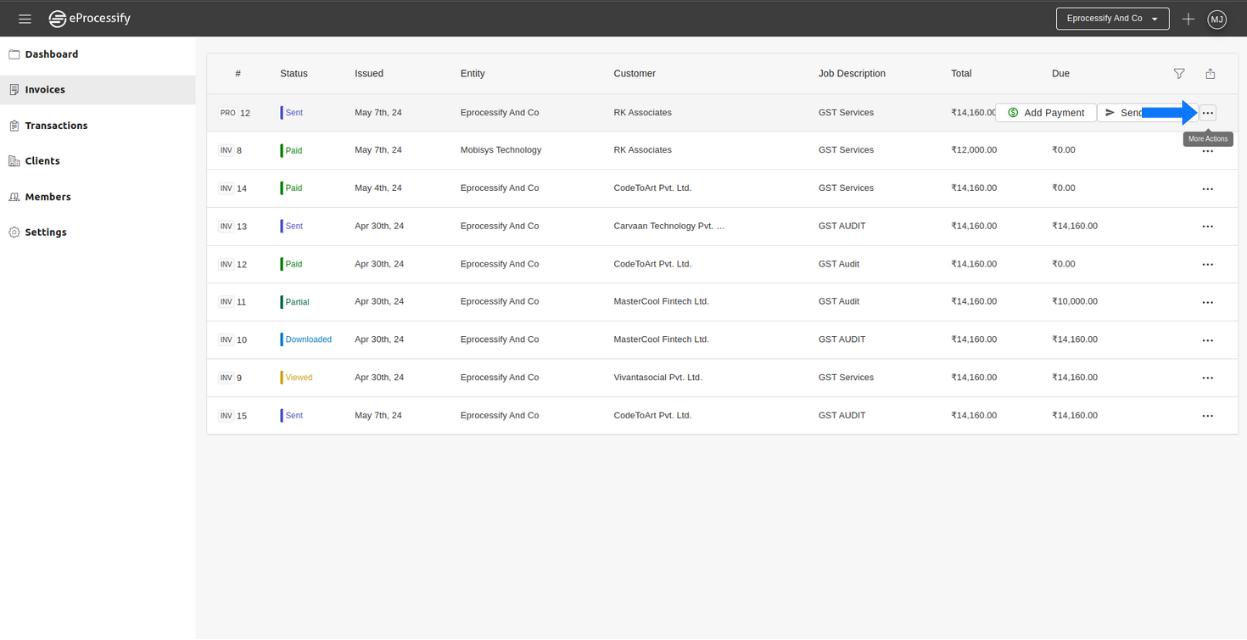
**Step 2:**                                                                                                                                                                                       Choose the pro forma invoice you want to convert to a tax invoice and click on the "More Actions" button located on the right side.

<figure><img src="https://2535826765-files.gitbook.io/~/files/v0/b/gitbook-x-prod.appspot.com/o/spaces%2F-MEMfXeGgsK0w2UmrDtt%2Fuploads%2FVXvoc2mF4vM557pZ8dpb%2F%EF%BF%BC%20-%202024-05-07T124136.044.png?alt=media&amp;token=063f9d70-35be-40db-82b7-3c64afe2e7f6" alt="" width="563"><figcaption></figcaption></figure>

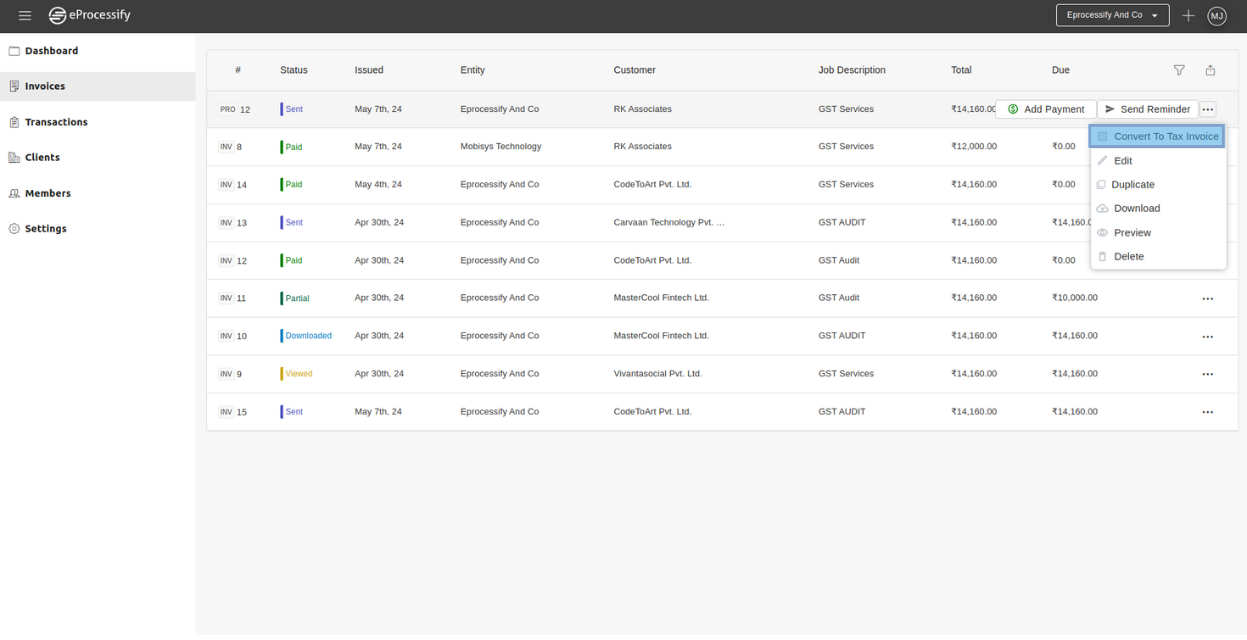
**Step 3:**                                                                                                                                                                                      After clicking on "More Actions," select "Convert to Tax Invoice" from the options that are displayed.

<figure><img src="https://2535826765-files.gitbook.io/~/files/v0/b/gitbook-x-prod.appspot.com/o/spaces%2F-MEMfXeGgsK0w2UmrDtt%2Fuploads%2Fo0G97NPeIyFTCdCASdq4%2F%EF%BF%BC%20-%202024-05-07T124736.531.png?alt=media&amp;token=c20b6345-698b-4622-898e-6d5f1f31e7e6" alt="" width="563"><figcaption></figcaption></figure>

**Additional Step**                                                                                                                                                                                     You can also convert the pro forma invoice to a tax invoice through your payment page.

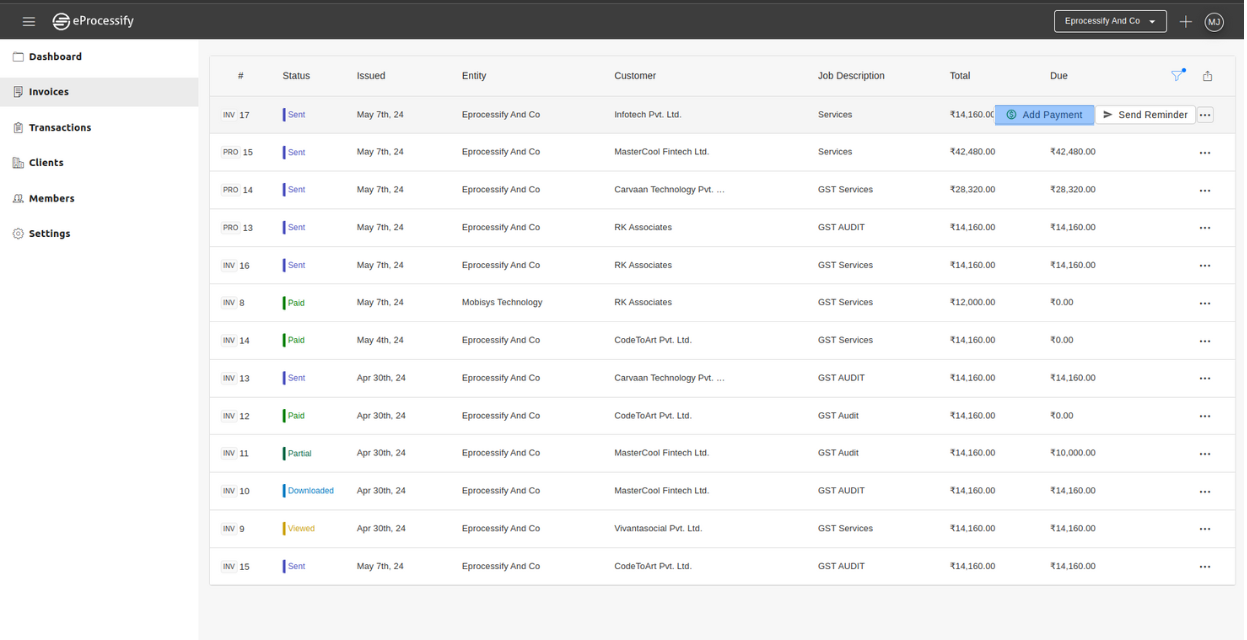
**Step 1:**                                                                                                                                                                        Choose the pro forma invoice that you want to convert into a tax invoice, then proceed by clicking 'add payment'.

<figure><img src="https://2535826765-files.gitbook.io/~/files/v0/b/gitbook-x-prod.appspot.com/o/spaces%2F-MEMfXeGgsK0w2UmrDtt%2Fuploads%2F00y5aqAt8Sug2mYchbX1%2F%EF%BF%BC%20-%202024-05-07T184343.220.png?alt=media&amp;token=05475ddf-c132-4a18-941e-edeb82fbea34" alt="" width="563"><figcaption></figcaption></figure>

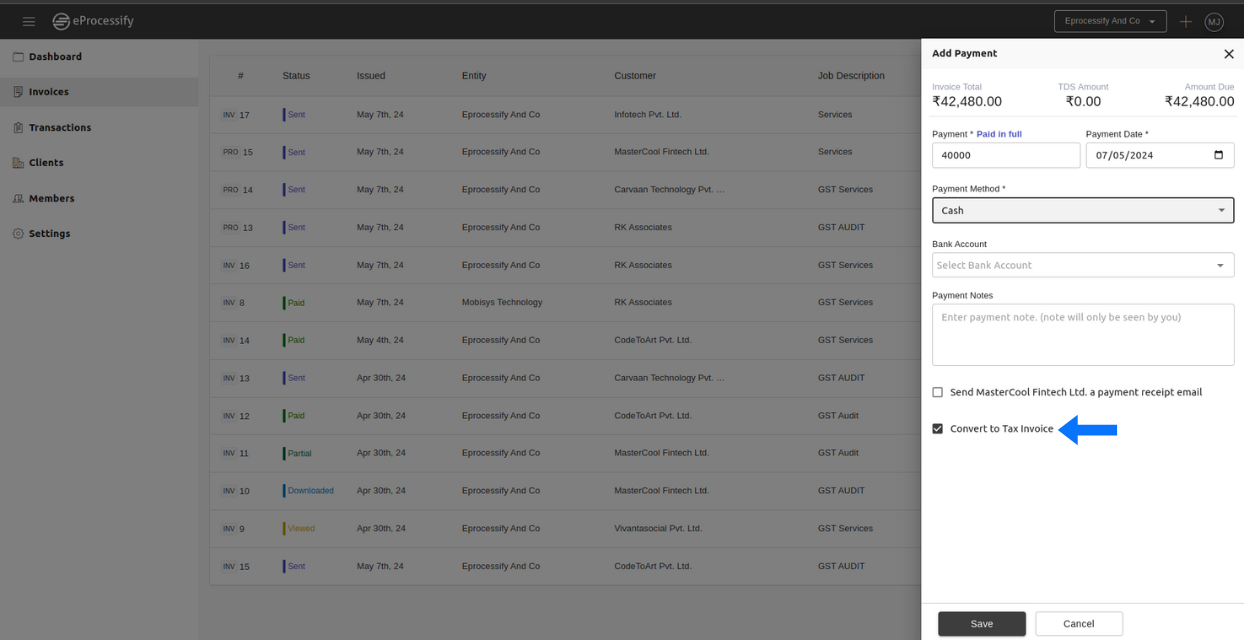
**Step 2:**                                                                                                                                                                                       Afterwards, enter the payment details according to your specifications, then select the 'Send Tax Invoice' checkbox to convert the pro forma invoice into a tax invoice and save it.

<figure><img src="https://2535826765-files.gitbook.io/~/files/v0/b/gitbook-x-prod.appspot.com/o/spaces%2F-MEMfXeGgsK0w2UmrDtt%2Fuploads%2FpA90tDnqtw99jmb7JAP9%2F%EF%BF%BC%20-%202024-05-07T184920.134.png?alt=media&amp;token=e0c06b51-1530-4c12-9f6d-c50df71f3b19" alt="" width="563"><figcaption></figcaption></figure>

And this is how you can convert a pro forma invoice into a tax invoice on eProcessify.


# View all Proforma Invoices

To view all pro forma invoices for a specific entity, you can follow these steps:

**Step 1:**                                                                                                                                                                                               On the navigation panel, select the "Invoices" option. This will bring up the list of invoices.

<figure><img src="https://2535826765-files.gitbook.io/~/files/v0/b/gitbook-x-prod.appspot.com/o/spaces%2F-MEMfXeGgsK0w2UmrDtt%2Fuploads%2F9GSM9ZpRcHWlU8sUOjjW%2F%EF%BF%BC%20(4).png?alt=media&amp;token=8d2574b1-f356-4490-b465-d47f68d5ab6c" alt="" width="563"><figcaption><p>Select the invoices option </p></figcaption></figure>

**Step 2:**                                                                                                                                                                                                On the right side of the invoices page, click on the "Filter" button.

<figure><img src="https://2535826765-files.gitbook.io/~/files/v0/b/gitbook-x-prod.appspot.com/o/spaces%2F-MEMfXeGgsK0w2UmrDtt%2Fuploads%2FsiBwph0iwEicBf1PToOk%2F%EF%BF%BC%20-%202024-05-07T130628.711.png?alt=media&amp;token=b97a5a26-9bf0-4f28-b339-efd774a37b2f" alt="" width="563"><figcaption></figcaption></figure>

**Step 3:** This will prompt you to specify various filter criteria and select the proforma filter to list all the proforma invoices.

<figure><img src="https://2535826765-files.gitbook.io/~/files/v0/b/gitbook-x-prod.appspot.com/o/spaces%2F-MEMfXeGgsK0w2UmrDtt%2Fuploads%2F7ulnDCHykFJxxoRiZkvt%2F%EF%BF%BC%20-%202024-05-07T130941.156.png?alt=media&amp;token=d303207c-deaa-4ea2-995b-c47890d1b7f3" alt="" width="563"><figcaption></figcaption></figure>

**Step 4:**                                                                                                                                                                           This will display all the pro forma invoices.                                                                                                                                            &#x20;

<figure><img src="https://2535826765-files.gitbook.io/~/files/v0/b/gitbook-x-prod.appspot.com/o/spaces%2F-MEMfXeGgsK0w2UmrDtt%2Fuploads%2FMOyTlKS2NxsriGOotWhR%2F%EF%BF%BC%20-%202024-05-07T131352.058.png?alt=media&amp;token=fca00b5c-fbdb-445c-9a36-d5c555db8755" alt="" width="563"><figcaption></figcaption></figure>

This is how you can view your all proforma invoices.


# Invoice Numbering

An invoice number is a unique identifier assigned to each invoice to track and manage transactions effectively. It helps businesses organize, categorize, and systematize payment processing. The invoice number can be made up of numbers, letters, or a combination of both. It is important to assign a unique invoice number to each invoice to avoid duplicate payments and facilitate easy identification and tracking of transactions.

1. **Sequential Numbering**: The most common method is to assign invoice numbers sequentially, starting from a specific number, such as 000001. This method ensures that each invoice has a unique number and helps with chronological organization.
2. **Prefix with Date**: Another option is to use the date as a prefix in YYYYMMDD format, such as 20201025-001. This method helps identify the invoice date and can be useful for tracking purposes.

<div><figure><img src="https://2535826765-files.gitbook.io/~/files/v0/b/gitbook-x-prod.appspot.com/o/spaces%2F-MEMfXeGgsK0w2UmrDtt%2Fuploads%2FVsGXQgXKuTAN9rbKOxR2%2F%EF%BF%BC%20-%202024-05-07T135335.022.png?alt=media&amp;token=c9330e1e-5d45-425e-81e6-f77a3de050a9" alt="" width="563"><figcaption></figcaption></figure> <figure><img src="https://2535826765-files.gitbook.io/~/files/v0/b/gitbook-x-prod.appspot.com/o/spaces%2F-MEMfXeGgsK0w2UmrDtt%2Fuploads%2FszLBCMXrhYtJmfKdk6bk%2F%EF%BF%BC%20-%202024-05-07T170657.330.png?alt=media&amp;token=1eab2f00-5fb1-485e-af55-5d5a960c598a" alt="" width="563"><figcaption></figcaption></figure></div>

There are several methods for numbering invoices. Here are some commonly used methods:&#x20;

In conclusion, the format and prefix of an invoice number can be tailored to suit the organization's needs, ensuring uniqueness, easy tracking, and compliance with local regulations.

<br>


# Set Invoice Number format and Invoice Prefix

Here are the steps to set the invoice number format and invoice prefix.

**Step 1:**                                                                                                                                                                                                                  Go to the settings page, where you can configure various aspects of your account.

<figure><img src="https://2535826765-files.gitbook.io/~/files/v0/b/gitbook-x-prod.appspot.com/o/spaces%2F-MEMfXeGgsK0w2UmrDtt%2Fuploads%2Fa4omO0tkB2mZmlBkhkJQ%2F%EF%BF%BC%20(14).png?alt=media&amp;token=34e005f2-84a9-4185-a648-81de16efde13" alt="" width="563"><figcaption><p>Click on 'Settings'</p></figcaption></figure>

**Step 2:**                                                                                                                                                                                                                In the settings, go to the "Preferences" tab.

<figure><img src="https://2535826765-files.gitbook.io/~/files/v0/b/gitbook-x-prod.appspot.com/o/spaces%2F-MEMfXeGgsK0w2UmrDtt%2Fuploads%2FliFNSTcM4MTL5QzDouEp%2F%EF%BF%BC%20(45).png?alt=media&amp;token=9fdc8d3b-db87-4e6e-b4d0-7ee71aec135a" alt="" width="563"><figcaption></figcaption></figure>

**Step 3:** In the "Preferences" section, select "Invoice Numbering Format" to set your invoice prefix format.

<figure><img src="https://2535826765-files.gitbook.io/~/files/v0/b/gitbook-x-prod.appspot.com/o/spaces%2F-MEMfXeGgsK0w2UmrDtt%2Fuploads%2FV34rfRDh8a3cY9R3V2gH%2F%EF%BF%BC%20-%202024-05-07T133621.842.png?alt=media&amp;token=8af90937-96b1-46b5-a348-591b7c15fc8c" alt="" width="563"><figcaption></figcaption></figure>

**Step 4:**                                                                                                                                                                                                After clicking on it, set your invoice prefix format and save it.

<figure><img src="https://2535826765-files.gitbook.io/~/files/v0/b/gitbook-x-prod.appspot.com/o/spaces%2F-MEMfXeGgsK0w2UmrDtt%2Fuploads%2FVsGXQgXKuTAN9rbKOxR2%2F%EF%BF%BC%20-%202024-05-07T135335.022.png?alt=media&amp;token=c9330e1e-5d45-425e-81e6-f77a3de050a9" alt="" width="563"><figcaption></figcaption></figure>

**Step 5:**                                                                                                                                                                                  Then select, the 'Invoice Prefix and Number' option to set your Invoice prefix and number.

<figure><img src="https://2535826765-files.gitbook.io/~/files/v0/b/gitbook-x-prod.appspot.com/o/spaces%2F-MEMfXeGgsK0w2UmrDtt%2Fuploads%2Fa2yITnGjF5dsI7PEy0TZ%2F%EF%BF%BC%20-%202024-05-07T135518.274.png?alt=media&amp;token=a6dc6131-7bf4-47b8-828c-0506edd78848" alt="" width="563"><figcaption></figcaption></figure>

**Step 6:**                                                                                                                                                                                                     Now, set your Invoice Prefix and number, as per your requirement, and click on 'save' to store the information.                                                                                                                  &#x20;

<figure><img src="https://2535826765-files.gitbook.io/~/files/v0/b/gitbook-x-prod.appspot.com/o/spaces%2F-MEMfXeGgsK0w2UmrDtt%2Fuploads%2FszLBCMXrhYtJmfKdk6bk%2F%EF%BF%BC%20-%202024-05-07T170657.330.png?alt=media&amp;token=1eab2f00-5fb1-485e-af55-5d5a960c598a" alt="" width="563"><figcaption></figcaption></figure>

This is how you can set your invoice number format and invoice prefix on eProcessify.


# Set the Invoice number manually

Here are the steps to manually set an invoice number:

**Step 1:**                                                                                                                                                                                Create a new invoice by clicking the plus button and selecting "New Invoice.".

<div><figure><img src="https://2535826765-files.gitbook.io/~/files/v0/b/gitbook-x-prod.appspot.com/o/spaces%2F-MEMfXeGgsK0w2UmrDtt%2Fuploads%2FyrDNlWq8VvbvasROcKsR%2FCanva%201.png?alt=media&amp;token=eaa36991-c399-460c-8e1b-7619642fb7b2" alt="" width="563"><figcaption><p>Click on plus button on the top right side </p></figcaption></figure> <figure><img src="https://2535826765-files.gitbook.io/~/files/v0/b/gitbook-x-prod.appspot.com/o/spaces%2F-MEMfXeGgsK0w2UmrDtt%2Fuploads%2FubBqfnaQtZbTkFEE4PIs%2FUntitled%20design%20(2).png?alt=media&amp;token=9793f622-11fe-4e38-ae9a-442f427898e2" alt="" width="563"><figcaption><p>Select 'New Invoice'</p></figcaption></figure></div>

**Step 2:** Enter the entity and customer information.

<figure><img src="https://2535826765-files.gitbook.io/~/files/v0/b/gitbook-x-prod.appspot.com/o/spaces%2F-MEMfXeGgsK0w2UmrDtt%2Fuploads%2FiBdTzx2yHSo20t9k218p%2FUntitled%20design%20(1).png?alt=media&amp;token=ff13bca2-2e47-4d03-9582-e26970891741" alt="" width="563"><figcaption><p>Select the Entity and customer </p></figcaption></figure>

**Step 3:**                                                                                                                                                                                     Once the invoice is displayed, click on the invoice number box and type in the desired number to manually enter the invoice number.

<figure><img src="https://2535826765-files.gitbook.io/~/files/v0/b/gitbook-x-prod.appspot.com/o/spaces%2F-MEMfXeGgsK0w2UmrDtt%2Fuploads%2Fv7SnkYORyXReUAHQLxjX%2F%EF%BF%BC%20(24).png?alt=media&amp;token=ef7581e0-a9c4-45f5-b49f-06e7f4ab7620" alt="" width="563"><figcaption><p>Enter your invoice number.</p></figcaption></figure>

**Step 4:**                                                                                                                                                                                         Fill in the invoice details according to your requirements and click "Save Invoice" to save the invoice.

<figure><img src="https://2535826765-files.gitbook.io/~/files/v0/b/gitbook-x-prod.appspot.com/o/spaces%2F-MEMfXeGgsK0w2UmrDtt%2Fuploads%2FQPBcVp8CF8X4GgbSG0k0%2F%EF%BF%BC%20(25).png?alt=media&amp;token=8a36a669-dc5b-4ee1-86a4-affdf7bf4074" alt="" width="563"><figcaption><p>Click on 'save invoice'</p></figcaption></figure>

By following the above simple steps, you can manually set the invoice number.

> If invoice number is already used in an old invoice, it will throw an error.&#x20;


# I am starting in the middle of FY. How can I set my numbering?

If you are starting invoicing in the middle of the financial year, there is no need to worry. With eProcessify, it is easy to set your invoice numbering. You can follow these steps for invoicing and numbering.

**Step 1:**                                                                                                                                                                                                                  Go to the settings page to configure various aspects of your account.

<figure><img src="https://2535826765-files.gitbook.io/~/files/v0/b/gitbook-x-prod.appspot.com/o/spaces%2F-MEMfXeGgsK0w2UmrDtt%2Fuploads%2Fa4omO0tkB2mZmlBkhkJQ%2F%EF%BF%BC%20(14).png?alt=media&amp;token=34e005f2-84a9-4185-a648-81de16efde13" alt="" width="563"><figcaption><p>Click on 'Settings'</p></figcaption></figure>

**Step 2:**                                                                                                                                                                                               Go to the "Preferences" tab in the settings.

<figure><img src="https://2535826765-files.gitbook.io/~/files/v0/b/gitbook-x-prod.appspot.com/o/spaces%2F-MEMfXeGgsK0w2UmrDtt%2Fuploads%2FliFNSTcM4MTL5QzDouEp%2F%EF%BF%BC%20(45).png?alt=media&amp;token=9fdc8d3b-db87-4e6e-b4d0-7ee71aec135a" alt="" width="563"><figcaption></figcaption></figure>

**Step 3:**                                                                                                                                                                                  Then select the 'Invoice Prefix and Number' option to set your invoice prefix and number.

<figure><img src="https://2535826765-files.gitbook.io/~/files/v0/b/gitbook-x-prod.appspot.com/o/spaces%2F-MEMfXeGgsK0w2UmrDtt%2Fuploads%2Fa2yITnGjF5dsI7PEy0TZ%2F%EF%BF%BC%20-%202024-05-07T135518.274.png?alt=media&amp;token=a6dc6131-7bf4-47b8-828c-0506edd78848" alt="" width="563"><figcaption></figcaption></figure>

**Step 4:**                                                                                                                                                                                                     Now, set your invoice number as per your requirement, and click on 'save' to store the information.

<figure><img src="https://2535826765-files.gitbook.io/~/files/v0/b/gitbook-x-prod.appspot.com/o/spaces%2F-MEMfXeGgsK0w2UmrDtt%2Fuploads%2FszLBCMXrhYtJmfKdk6bk%2F%EF%BF%BC%20-%202024-05-07T170657.330.png?alt=media&amp;token=1eab2f00-5fb1-485e-af55-5d5a960c598a" alt="" width="563"><figcaption></figcaption></figure>

&#x20;      And this is how you can set the invoicing number as per your requirement on eProcessify.


# Cancel Invoice

To cancel an invoice, follow the steps below:\
\
**Step 1:**\
On the navigation panel, select the "Invoices" option.

<figure><img src="https://2535826765-files.gitbook.io/~/files/v0/b/gitbook-x-prod.appspot.com/o/spaces%2F-MEMfXeGgsK0w2UmrDtt%2Fuploads%2F3rVTlctxjVT2YTh43sZm%2FUntitled%20design%20(1).png?alt=media&amp;token=0bfcf273-b10c-46a1-bd11-78ebd25a5ec4" alt="" width="563"><figcaption><p>Select the invoices option</p></figcaption></figure>

**Step 2:**\
Choose the invoice you want to cancel and click on the "More Actions" button located on the right side.

<figure><img src="https://2535826765-files.gitbook.io/~/files/v0/b/gitbook-x-prod.appspot.com/o/spaces%2F-MEMfXeGgsK0w2UmrDtt%2Fuploads%2Fq3CQCUYOK8xoyMPzPLBy%2FUntitled%20design%20(3).png?alt=media&amp;token=c6fa973e-4553-4f22-96ac-7befe599adb8" alt="" width="563"><figcaption><p>Click on more options button</p></figcaption></figure>

**Step 3:**\
Click on the "Cancel" option to cancel the invoice

<figure><img src="https://2535826765-files.gitbook.io/~/files/v0/b/gitbook-x-prod.appspot.com/o/spaces%2F-MEMfXeGgsK0w2UmrDtt%2Fuploads%2F7KuqkWm4nZPPiq4F9DU8%2FUntitled%20design%20(2).png?alt=media&amp;token=cd5405ba-246e-4aaf-907a-3f611ea2a080" alt="" width="563"><figcaption><p>Click on cancel option</p></figcaption></figure>

**Step 4:**\
Click on ''yes'' to cancel the sent invoice

<figure><img src="https://2535826765-files.gitbook.io/~/files/v0/b/gitbook-x-prod.appspot.com/o/spaces%2F-MEMfXeGgsK0w2UmrDtt%2Fuploads%2FZqjXi4DvkcRFtHeU8yG5%2FScreenshot%20from%202024-08-26%2017-11-29.png?alt=media&amp;token=048060db-6ca0-42b4-ab1c-a35aae32a63c" alt="" width="563"><figcaption><p>click on yes o cancel the invoice</p></figcaption></figure>

In case of recurring invoices click on check the box to cancel the invoices occurring in the future<br>

<figure><img src="https://2535826765-files.gitbook.io/~/files/v0/b/gitbook-x-prod.appspot.com/o/spaces%2F-MEMfXeGgsK0w2UmrDtt%2Fuploads%2FCrwGLXltyIdbEeE8vL6A%2FScreenshot%20from%202024-08-26%2017-20-21.png?alt=media&amp;token=f622a949-8af7-4962-8c39-a7029571a0a0" alt="" width="563"><figcaption><p>click on the check box</p></figcaption></figure>

This is how you can cancel an invoice

> NOTE: You cannot cancel paid or partially paid invoices.&#x20;


# Payments

Payment is the process of transferring money from one party to another in exchange for goods, services, or debts. It is an essential aspect of conducting business and maintaining financial transactions.

**Importance of Payments**

**1. Facilitates Business Transactions:** Payments are crucial for the smooth functioning of business transactions. They enable businesses to receive payment for their products or services, allowing them to generate revenue and sustain their operations.                                                                                                               &#x32;**. Ensures Financial Stability:** Regular and timely payments are crucial for businesses' financial stability. They enable businesses to meet their financial commitments, invest in growth opportunities, and maintain a healthy financial position.                                                      &#x20;


# How do I add payment to an invoice?

There are two ways to add the payment to the invoices. Here are the steps to add payment to the invoice.

**Step 1:**                                                                                                                                                                                                          Click the plus button on the top right side of the panel.

<figure><img src="https://2535826765-files.gitbook.io/~/files/v0/b/gitbook-x-prod.appspot.com/o/spaces%2F-MEMfXeGgsK0w2UmrDtt%2Fuploads%2FQ1LECqbaankvyfKhPwGM%2F%EF%BF%BC%20(50).png?alt=media&amp;token=a2a10819-2627-453b-a940-af0457ac4cf9" alt="" width="563"><figcaption></figcaption></figure>

**Step 2:**                                                                                                                                                                                              From the options that appear, select "Add Payments." Next, select the entity you wish to add the payment to and choose the customer.

<figure><img src="https://2535826765-files.gitbook.io/~/files/v0/b/gitbook-x-prod.appspot.com/o/spaces%2F-MEMfXeGgsK0w2UmrDtt%2Fuploads%2FzMPTVTC5fwF4lqKSxubl%2F%EF%BF%BC%20(90).png?alt=media&amp;token=dac9d128-d642-4993-9955-1b71c7440f94" alt="" width="563"><figcaption></figcaption></figure>

**Step 3:**                                                                                                                                                                   After that, choose the customer from the list who has made the payment.

<figure><img src="https://2535826765-files.gitbook.io/~/files/v0/b/gitbook-x-prod.appspot.com/o/spaces%2F-MEMfXeGgsK0w2UmrDtt%2Fuploads%2FtcLzXUSplYTRhrO8qtgZ%2F%EF%BF%BC%20(91).png?alt=media&amp;token=930d297f-764b-4914-8e0e-6b6ea2e9f0d4" alt="" width="563"><figcaption></figcaption></figure>

**Step 4:**                                                                                                                                                                   Now, the system will show up all the invoices of that customer. Once you have identified the invoice for which you have received payment, click on 'add payment'.

<figure><img src="https://2535826765-files.gitbook.io/~/files/v0/b/gitbook-x-prod.appspot.com/o/spaces%2F-MEMfXeGgsK0w2UmrDtt%2Fuploads%2FNE5SlK40FuTxtk3vU9TJ%2F%EF%BF%BC%20(92).png?alt=media&amp;token=45e6194d-638f-43f0-9dd3-15cc9f5a394f" alt="" width="563"><figcaption></figcaption></figure>

**Step 5:**                                                                                                                                                                                            Enter the necessary details about the payment (such as Payment Amount, Payment Type, etc.)&#x20;

<figure><img src="https://2535826765-files.gitbook.io/~/files/v0/b/gitbook-x-prod.appspot.com/o/spaces%2F-MEMfXeGgsK0w2UmrDtt%2Fuploads%2FdzPiJLzvOZsiV8B56AZk%2F%EF%BF%BC%20(93).png?alt=media&amp;token=cfda2dea-e59d-4c01-9c15-a9453efa10f2" alt="" width="563"><figcaption></figcaption></figure>

**Step 6:**                                                                                                                                                                                                           If you want to send a payment receipt to the customer, you can simply tick the 'send payment receipt' box directly.

<figure><img src="https://2535826765-files.gitbook.io/~/files/v0/b/gitbook-x-prod.appspot.com/o/spaces%2F-MEMfXeGgsK0w2UmrDtt%2Fuploads%2FHwVdHgXYRnvk02unxH8E%2F%EF%BF%BC%20(94).png?alt=media&amp;token=e1a6c974-325b-495c-9a27-b5da196a6437" alt="" width="563"><figcaption></figcaption></figure>

**Step 7:**                                                                                                                                                                                           Once you have finalized the payment details, click the 'save' button to store the information.

<figure><img src="https://2535826765-files.gitbook.io/~/files/v0/b/gitbook-x-prod.appspot.com/o/spaces%2F-MEMfXeGgsK0w2UmrDtt%2Fuploads%2FlHMiWAyQOLoXhYts85PV%2F%EF%BF%BC%20(95).png?alt=media&amp;token=066e53fe-7275-4f3e-9b04-567a7be170d1" alt="" width="563"><figcaption></figcaption></figure>

**There is Another way to add the payment of the customer.**

**Step 1:**                                                                                                                                                                                                      On the navigation panel, select the "Invoice" option. This will display a list of invoices.                                                                                                                                               &#x20;

<figure><img src="https://2535826765-files.gitbook.io/~/files/v0/b/gitbook-x-prod.appspot.com/o/spaces%2F-MEMfXeGgsK0w2UmrDtt%2Fuploads%2FUkKSIoB8e4EDKUeP0VCY%2F%EF%BF%BC%20(30).png?alt=media&amp;token=27cca22b-819a-4e24-beec-313666008f80" alt="" width="563"><figcaption></figcaption></figure>

**Step 2:**                                                                                                                                                                                          Select the invoice to which you want to add the payment, then simply click on 'add payment'.

<figure><img src="https://2535826765-files.gitbook.io/~/files/v0/b/gitbook-x-prod.appspot.com/o/spaces%2F-MEMfXeGgsK0w2UmrDtt%2Fuploads%2FMFNfyYEWt7q1SLZUlhWR%2F%EF%BF%BC%20(96).png?alt=media&amp;token=017569bf-9b94-4f74-9776-17f3204c8f75" alt="" width="563"><figcaption></figcaption></figure>

**Step 3:**                                                                                                                                                                                            Enter the necessary details about the payment (such as Payment Amount, Payment Type, etc.)       &#x20;

<figure><img src="https://2535826765-files.gitbook.io/~/files/v0/b/gitbook-x-prod.appspot.com/o/spaces%2F-MEMfXeGgsK0w2UmrDtt%2Fuploads%2FdzPiJLzvOZsiV8B56AZk%2F%EF%BF%BC%20(93).png?alt=media&amp;token=cfda2dea-e59d-4c01-9c15-a9453efa10f2" alt="" width="563"><figcaption></figcaption></figure>

**Step 4:**                                                                                                                                                                                           Once you have finalized the payment details, click the 'save' button to store the information.                                                                                                                                                                                      &#x20;

<figure><img src="https://2535826765-files.gitbook.io/~/files/v0/b/gitbook-x-prod.appspot.com/o/spaces%2F-MEMfXeGgsK0w2UmrDtt%2Fuploads%2FlHMiWAyQOLoXhYts85PV%2F%EF%BF%BC%20(95).png?alt=media&amp;token=066e53fe-7275-4f3e-9b04-567a7be170d1" alt="" width="563"><figcaption></figcaption></figure>

And this is how you can add any payment received from your client.


# How do I send a payment receipt to the customer?

**Step 1:**                                                                                                                                                                                                          Click the plus button on the top right side of the panel.

<figure><img src="https://2535826765-files.gitbook.io/~/files/v0/b/gitbook-x-prod.appspot.com/o/spaces%2F-MEMfXeGgsK0w2UmrDtt%2Fuploads%2FQ1LECqbaankvyfKhPwGM%2F%EF%BF%BC%20(50).png?alt=media&amp;token=a2a10819-2627-453b-a940-af0457ac4cf9" alt="" width="563"><figcaption></figcaption></figure>

**Step 2:**                                                                                                                                                                                              From the options that appear, select "**Add Payments**." Next, select the entity you wish to add the payment to and choose the customer.

<figure><img src="https://2535826765-files.gitbook.io/~/files/v0/b/gitbook-x-prod.appspot.com/o/spaces%2F-MEMfXeGgsK0w2UmrDtt%2Fuploads%2FzMPTVTC5fwF4lqKSxubl%2F%EF%BF%BC%20(90).png?alt=media&amp;token=dac9d128-d642-4993-9955-1b71c7440f94" alt="" width="563"><figcaption></figcaption></figure>

**Step 3:**                                                                                                                                                                   After that, choose the customer from the list who has made the payment.    &#x20;

<figure><img src="https://2535826765-files.gitbook.io/~/files/v0/b/gitbook-x-prod.appspot.com/o/spaces%2F-MEMfXeGgsK0w2UmrDtt%2Fuploads%2FtcLzXUSplYTRhrO8qtgZ%2F%EF%BF%BC%20(91).png?alt=media&amp;token=930d297f-764b-4914-8e0e-6b6ea2e9f0d4" alt="" width="563"><figcaption></figcaption></figure>

**Step 4:**                                                                                                                                                                   Now, the system will show up all the invoices of that customer. Once you have identified the invoice for which you have received payment, click on 'add payment'.

<figure><img src="https://2535826765-files.gitbook.io/~/files/v0/b/gitbook-x-prod.appspot.com/o/spaces%2F-MEMfXeGgsK0w2UmrDtt%2Fuploads%2FNE5SlK40FuTxtk3vU9TJ%2F%EF%BF%BC%20(92).png?alt=media&amp;token=45e6194d-638f-43f0-9dd3-15cc9f5a394f" alt="" width="563"><figcaption></figcaption></figure>

**Step 5:**                                                                                                                                                                                            Enter the necessary details about the payment (such as Payment Amount, Payment Type, etc.)&#x20;

<figure><img src="https://2535826765-files.gitbook.io/~/files/v0/b/gitbook-x-prod.appspot.com/o/spaces%2F-MEMfXeGgsK0w2UmrDtt%2Fuploads%2FdzPiJLzvOZsiV8B56AZk%2F%EF%BF%BC%20(93).png?alt=media&amp;token=cfda2dea-e59d-4c01-9c15-a9453efa10f2" alt="" width="563"><figcaption></figcaption></figure>

**Step 6:**                                                                                                                                                                                                           Then click on send payment receipt to the customer, you can tick the 'send payment receipt' box directly.

<figure><img src="https://2535826765-files.gitbook.io/~/files/v0/b/gitbook-x-prod.appspot.com/o/spaces%2F-MEMfXeGgsK0w2UmrDtt%2Fuploads%2FHwVdHgXYRnvk02unxH8E%2F%EF%BF%BC%20(94).png?alt=media&amp;token=e1a6c974-325b-495c-9a27-b5da196a6437" alt="" width="563"><figcaption></figcaption></figure>

**Step 7:**                                                                                                                                                                                           Once you have finalized the payment details, click the 'save' button to store the information.

<figure><img src="https://2535826765-files.gitbook.io/~/files/v0/b/gitbook-x-prod.appspot.com/o/spaces%2F-MEMfXeGgsK0w2UmrDtt%2Fuploads%2FlHMiWAyQOLoXhYts85PV%2F%EF%BF%BC%20(95).png?alt=media&amp;token=066e53fe-7275-4f3e-9b04-567a7be170d1" alt="" width="563"><figcaption></figcaption></figure>

And this is how you can send the payment receipt to the customer on eProcessify.


# Edit or Delete the payment

Here are the steps to edit or delete the payment transaction.

**Step 1:**                                                                                                                                                                                                      On the navigation panel, select the "Transaction" option. This will display a list of transactions.

<figure><img src="https://2535826765-files.gitbook.io/~/files/v0/b/gitbook-x-prod.appspot.com/o/spaces%2F-MEMfXeGgsK0w2UmrDtt%2Fuploads%2FqtK0fsrYQw4Xz05QQjLC%2F%EF%BF%BC%20(98).png?alt=media&amp;token=83eb401e-7930-4317-9450-24e895f08c37" alt="" width="563"><figcaption></figcaption></figure>

**Step 2:**                                                                                                                                                                                          Select the transaction or payment you want to edit or delete. Then simply click on 'more actions'.

<figure><img src="https://2535826765-files.gitbook.io/~/files/v0/b/gitbook-x-prod.appspot.com/o/spaces%2F-MEMfXeGgsK0w2UmrDtt%2Fuploads%2Fs5tBfzi8VTGsSbFlv87P%2F%EF%BF%BC%20(99).png?alt=media&amp;token=4a7927e8-fa62-4834-9f7c-ac772cd9cfc9" alt="" width="563"><figcaption></figcaption></figure>

**Step 3:**                                                                                                                                                                                        If you want to edit the payment transaction, select the edit option. If you want to delete it, choose the delete option.

<figure><img src="https://2535826765-files.gitbook.io/~/files/v0/b/gitbook-x-prod.appspot.com/o/spaces%2F-MEMfXeGgsK0w2UmrDtt%2Fuploads%2FR1Ezc2JACHoKmEXuzEe8%2F%EF%BF%BC%20(100).png?alt=media&amp;token=539888ee-380b-4292-9fb5-2402789aa882" alt="" width="563"><figcaption></figcaption></figure>

And this is how you can edit or delete your payment transaction.


# View all payments

Here are the steps to view all your payment transactions:

**Step 1:**                                                                                                                                                                                                      On the navigation panel, select the "Transaction" option. This will display a list of transactions.

<figure><img src="https://2535826765-files.gitbook.io/~/files/v0/b/gitbook-x-prod.appspot.com/o/spaces%2F-MEMfXeGgsK0w2UmrDtt%2Fuploads%2FqtK0fsrYQw4Xz05QQjLC%2F%EF%BF%BC%20(98).png?alt=media&amp;token=83eb401e-7930-4317-9450-24e895f08c37" alt="" width="563"><figcaption></figcaption></figure>

**Step 2:**                                                                                                                                                                                                You can also filter transactions by clicking the "Filter" button on the right side of the transaction page.

<figure><img src="https://2535826765-files.gitbook.io/~/files/v0/b/gitbook-x-prod.appspot.com/o/spaces%2F-MEMfXeGgsK0w2UmrDtt%2Fuploads%2Fetb7xMho54Gf5KMBjdrg%2F%EF%BF%BC%20-%202024-05-04T153533.674.png?alt=media&amp;token=6c2bfb87-2c5e-40d3-8706-ebe1873989d8" alt="" width="563"><figcaption></figcaption></figure>

**Step 3:** This will prompt you to specify various filter criteria, such as the date range, client, and payment method.

<figure><img src="https://2535826765-files.gitbook.io/~/files/v0/b/gitbook-x-prod.appspot.com/o/spaces%2F-MEMfXeGgsK0w2UmrDtt%2Fuploads%2FeALVZxewzqO7oXhyo6eE%2F%EF%BF%BC%20-%202024-05-04T155151.924.png?alt=media&amp;token=a934dc12-56ff-485a-9826-d7bedeaa7eb2" alt="" width="563"><figcaption></figcaption></figure>

And this is how you view your payment transactions.


# Export payments to an excel sheet

Here are the steps to export the transaction list to an Excel sheet.

**Step 1:**                                                                                                                                                                                                      On the navigation panel, select the "Transactions" option. This will display a list of transactions.

<figure><img src="https://2535826765-files.gitbook.io/~/files/v0/b/gitbook-x-prod.appspot.com/o/spaces%2F-MEMfXeGgsK0w2UmrDtt%2Fuploads%2FV2nVyXfl0E1nKCX77xzh%2Fimage.png?alt=media&amp;token=41851ff9-4734-4f75-8706-763820e60144" alt="" width="563"><figcaption></figcaption></figure>

**Step 2:**                                                                                                                                                                                           To export the data, click the 'export' option at the top-right corner of the page.

<figure><img src="https://2535826765-files.gitbook.io/~/files/v0/b/gitbook-x-prod.appspot.com/o/spaces%2F-MEMfXeGgsK0w2UmrDtt%2Fuploads%2FYJRCpesRf9ZN4qZsXGR3%2F%EF%BF%BC%20-%202024-05-04T161613.633.png?alt=media&amp;token=44da8942-227f-4397-8795-4c9630609da6" alt="" width="563"><figcaption></figcaption></figure>

**Step 3:**                                                                                                                                                                                             When the system generates the Excel sheet, you can download it by clicking the 'download' button.

<figure><img src="https://2535826765-files.gitbook.io/~/files/v0/b/gitbook-x-prod.appspot.com/o/spaces%2F-MEMfXeGgsK0w2UmrDtt%2Fuploads%2FHcmKx7HnPYPT7acsqnjC%2F%EF%BF%BC%20-%202024-05-04T162236.113.png?alt=media&amp;token=201f6c97-6de2-4fe8-8fee-b4c159343528" alt="" width="563"><figcaption></figcaption></figure>

This is how you can download your transaction data into an Excel sheet.


# Clients

In eProcessify, **clients** refer to the individuals or businesses to whom goods or services are provided and for whom invoices are generated. Clients are the recipients of the products or services and are responsible for making payments based on the invoices they receive. eProcessify allows businesses to create and send invoices to their clients quickly and efficiently. It provides features that enable businesses to track invoices, manage payments, and keep a record of transactions with their clients.&#x20;

The clients' information, such as their names, contact details, billing addresses, and payment methods, is typically stored in eProcessify. This information can be easily accessed when creating invoices, eliminating the need to manually enter client details each time.


# How do I add a new client?

**Step 1:**                                                                                                                                                                                                In the top panel, locate the plus button on the top right side and click on it.

<figure><img src="https://2535826765-files.gitbook.io/~/files/v0/b/gitbook-x-prod.appspot.com/o/spaces%2F-MEMfXeGgsK0w2UmrDtt%2Fuploads%2FQ1LECqbaankvyfKhPwGM%2F%EF%BF%BC%20(50).png?alt=media&amp;token=a2a10819-2627-453b-a940-af0457ac4cf9" alt="" width="563"><figcaption></figcaption></figure>

**Step 2:**                                                                                                                                                                                                   From the options that appear, select "**New Client**." Next, fill in the details as per your requirements.

<div><figure><img src="https://2535826765-files.gitbook.io/~/files/v0/b/gitbook-x-prod.appspot.com/o/spaces%2F-MEMfXeGgsK0w2UmrDtt%2Fuploads%2F5LbXUPOIEDGWUfzCj3YX%2F%EF%BF%BC%20(51).png?alt=media&amp;token=56bd0dd3-ce20-440a-a4ae-0edd55572c0e" alt=""><figcaption><p>Click on New Client </p></figcaption></figure> <figure><img src="https://2535826765-files.gitbook.io/~/files/v0/b/gitbook-x-prod.appspot.com/o/spaces%2F-MEMfXeGgsK0w2UmrDtt%2Fuploads%2FCBb2nE1gJSKbpXHF3g8A%2F%EF%BF%BC%20(52).png?alt=media&amp;token=d7c62238-a532-4069-b70e-4e08758d8405" alt=""><figcaption><p>Fill the details of the client.</p></figcaption></figure></div>

**Step 3:**                                                                                                                                                                        Additionally, you can include custom details about the client, such as a registration number or place of supply, to display on the invoice. It can be added with the help of custom fields. Check out more at the link below.

{% content-ref url="/pages/w60gsG7iZWLWqQTJzEry" %}
[How do I create a custom field?](/invoices/clients/custom-fields/how-do-i-create-a-custom-field)
{% endcontent-ref %}

<figure><img src="https://2535826765-files.gitbook.io/~/files/v0/b/gitbook-x-prod.appspot.com/o/spaces%2F-MEMfXeGgsK0w2UmrDtt%2Fuploads%2FkvBh2XxOGAmdztElPVjH%2F%EF%BF%BC%20(53).png?alt=media&amp;token=2f7207bb-86bc-47e6-b67a-04b385aee052" alt="" width="563"><figcaption><p>Add any custom details of the client </p></figcaption></figure>

**Step 4:**                                                                                                                                                                                    Select 'Next' and enter the client's personal information, including their name, phone number, and email.

<div><figure><img src="https://2535826765-files.gitbook.io/~/files/v0/b/gitbook-x-prod.appspot.com/o/spaces%2F-MEMfXeGgsK0w2UmrDtt%2Fuploads%2Fzgw5cnYogmKOPJF2vy8w%2F%EF%BF%BC%20(54).png?alt=media&amp;token=3bb0e9fd-13c8-4724-adfc-c4d4ba216fe9" alt="" width="563"><figcaption><p>Clcik on 'Next'</p></figcaption></figure> <figure><img src="https://2535826765-files.gitbook.io/~/files/v0/b/gitbook-x-prod.appspot.com/o/spaces%2F-MEMfXeGgsK0w2UmrDtt%2Fuploads%2Fptzpy5Gx2eep87CjdIlq%2F%EF%BF%BC%20(55).png?alt=media&amp;token=da765852-a9da-416b-bb1e-7bcbc09646d6" alt="" width="563"><figcaption><p>Fill the client details</p></figcaption></figure></div>

**Step 5:**                                                                                                                                                                                                   To finalize, click on 'Save' in order to store the client's information.

<figure><img src="https://2535826765-files.gitbook.io/~/files/v0/b/gitbook-x-prod.appspot.com/o/spaces%2F-MEMfXeGgsK0w2UmrDtt%2Fuploads%2FSNmPx4zpUbKX8cUjyQTz%2F%EF%BF%BC%20(56).png?alt=media&amp;token=7e9b881b-9b61-48bb-b084-876eaa4778d6" alt="" width="563"><figcaption><p>Click on save to store the client details</p></figcaption></figure>

And this is how you can add a new client in eProcessify.<br>


# How do I edit an existing client?

Here's how you can update an existing client:

**Step 1:**                                                                                                                                                                                Navigate to the 'client' option on the navigation panel, which will present you with a list of clients.

<figure><img src="https://2535826765-files.gitbook.io/~/files/v0/b/gitbook-x-prod.appspot.com/o/spaces%2F-MEMfXeGgsK0w2UmrDtt%2Fuploads%2FC0k5ddkhHsKm0h6qy9uR%2F%EF%BF%BC%20(57).png?alt=media&amp;token=45f2fade-75c9-4871-9bf6-6f528418b3d4" alt="" width="563"><figcaption><p>Click on 'clients'</p></figcaption></figure>

**Step 2:**                                                                                                                                                                                          Select the client you wish to update and click on the 'Edit' option.

<figure><img src="https://2535826765-files.gitbook.io/~/files/v0/b/gitbook-x-prod.appspot.com/o/spaces%2F-MEMfXeGgsK0w2UmrDtt%2Fuploads%2FRflq7SArilNk4uyUyg3s%2F%EF%BF%BC%20(58).png?alt=media&amp;token=9b255771-f5b7-4fee-9b1c-1dddde71ded7" alt="" width="563"><figcaption><p>Click on 'edit'</p></figcaption></figure>

**Step 3:**                                                                                                                                                                                                You'll see the client's details, allowing you to make the required adjustments as needed.

<figure><img src="https://2535826765-files.gitbook.io/~/files/v0/b/gitbook-x-prod.appspot.com/o/spaces%2F-MEMfXeGgsK0w2UmrDtt%2Fuploads%2Fs9Lp1gBy6kn2NpzE5qaX%2F%EF%BF%BC%20(59).png?alt=media&amp;token=c4484a09-6e77-48c3-af52-27005776c11c" alt="" width="563"><figcaption><p>Modify the necessary terms.</p></figcaption></figure>

**Step 4:**                                                                                                                                                                                   Once you've made the changes, click on the "Update" button to save the updated information.

<figure><img src="https://2535826765-files.gitbook.io/~/files/v0/b/gitbook-x-prod.appspot.com/o/spaces%2F-MEMfXeGgsK0w2UmrDtt%2Fuploads%2FjB5KTmugDTSxSbZvggoV%2F%EF%BF%BC%20(60).png?alt=media&amp;token=48878778-08c8-49a5-84f6-a7b7318cb473" alt="" width="563"><figcaption><p>Click on Update</p></figcaption></figure>

<br>


# Custom Fields

The custom field feature is a versatile tool that allows you to include specific and relevant information about your clients.                                                                                                                                                                 This feature provides the flexibility to add details such as registration numbers, places of supply, or any other information unique to your business needs. With the option to set a default value for these fields, you can save time and ensure accuracy.&#x20;

Additionally, the custom field can be displayed on invoices, allowing you to provide clear and detailed information to your clients. Overall, this feature provides an efficient and effective way to customize your client database, streamline your workflow, and ensure accuracy.&#x20;

Let's see the form below and understand what each field is while adding a custom field:

<figure><img src="https://2535826765-files.gitbook.io/~/files/v0/b/gitbook-x-prod.appspot.com/o/spaces%2F-MEMfXeGgsK0w2UmrDtt%2Fuploads%2FjJqf6JtoqrKXfXh7g7ey%2FScreenshot%20from%202024-05-03%2010-12-20.png?alt=media&amp;token=9521aa9a-af12-4304-97ef-935fc3d884d7" alt=""><figcaption><p>Custom field form.</p></figcaption></figure>

* **Custom Field Name** - Name of the custom field
* **Type -** Type of the custom field. Type can be&#x20;
  * ***Text*** - If a custom field contains a value in the form of simple text, such as a registration number.
  * ***Image/Document -*** If you need to upload any client documents such as a PAN card or Certificate of Incorporation for record-keeping purposes, you may do so.
* **Default value -** You can set the default value of the custom field to any basic field of the client like Tax ID, Address, State, or Country. When a new client is created, a custom field with a default value is automatically added to their record.
* **Show on Invoice -** You can display the value of a custom field on an invoice if it's set for the client.

Let's now learn how to create or edit a new custom field.


# How do I create a custom field?

Here's how to create a custom field:

**Step 1:**                                                                                                                                                                                 Go to the navigation panel and choose the 'Clients' option to view the list of clients.

<figure><img src="https://2535826765-files.gitbook.io/~/files/v0/b/gitbook-x-prod.appspot.com/o/spaces%2F-MEMfXeGgsK0w2UmrDtt%2Fuploads%2FT0wHHqQau0S7rt94ZeUr%2F%EF%BF%BC%20(62).png?alt=media&amp;token=330fce78-b4a9-46d2-88cb-2eaf8043fbc6" alt="" width="563"><figcaption><p>Select the Clients option.</p></figcaption></figure>

**Step 2:**                                                                                                                                                                                             Within the Clients section, select the 'Custom Fields' tab.

<figure><img src="https://2535826765-files.gitbook.io/~/files/v0/b/gitbook-x-prod.appspot.com/o/spaces%2F-MEMfXeGgsK0w2UmrDtt%2Fuploads%2FEwqhdVxnxoyTW9bmbBdH%2F%EF%BF%BC%20-%202024-05-04T175745.499.png?alt=media&amp;token=e41bec1c-aad8-4258-9e9e-29436fbf5fc1" alt="" width="563"><figcaption></figcaption></figure>

**Step 3:**                                                                                                                                                                                          Click on the 'Add custom field' option on the right side of the tab.

<figure><img src="https://2535826765-files.gitbook.io/~/files/v0/b/gitbook-x-prod.appspot.com/o/spaces%2F-MEMfXeGgsK0w2UmrDtt%2Fuploads%2FUwj7WhtGwg7Dvl9Bx9hO%2F%EF%BF%BC%20(64).png?alt=media&amp;token=7974fe3d-a5d2-4875-909e-1ba8411d4e6d" alt="" width="563"><figcaption><p>Click on 'Add Custom Field'.</p></figcaption></figure>

**Step 4:**                                                                                                                                                                                       Fill in the required details for the clients. If you want this field to be shown on the invoice, check the "Show on Invoice" checkbox. Click on 'Save' to store the information.

<figure><img src="https://2535826765-files.gitbook.io/~/files/v0/b/gitbook-x-prod.appspot.com/o/spaces%2F-MEMfXeGgsK0w2UmrDtt%2Fuploads%2F52tR266utLzwRndZVNq5%2F%EF%BF%BC%20(61).png?alt=media&amp;token=b2b334a3-40dc-4358-817b-2998c19c8ad1" alt="" width="563"><figcaption><p>Clcik on 'Update' to save the information.</p></figcaption></figure>

> When adding a new client, you'll be able to select a custom field and input specific details about the client. If a default value is configured for the custom field, these details will automatically be added when a new client is created.


# How do I edit an existing custom field?

**Step 1:**                                                                                                                                                                                 Go to the navigation panel and choose the 'client' option to view the list of clients.

<figure><img src="https://2535826765-files.gitbook.io/~/files/v0/b/gitbook-x-prod.appspot.com/o/spaces%2F-MEMfXeGgsK0w2UmrDtt%2Fuploads%2FT0wHHqQau0S7rt94ZeUr%2F%EF%BF%BC%20(62).png?alt=media&amp;token=330fce78-b4a9-46d2-88cb-2eaf8043fbc6" alt="" width="563"><figcaption><p>Select the Clients option.</p></figcaption></figure>

**Step 2:**                                                                                                                                                                                             Within the client's section, select the 'custom field' tab.

<figure><img src="https://2535826765-files.gitbook.io/~/files/v0/b/gitbook-x-prod.appspot.com/o/spaces%2F-MEMfXeGgsK0w2UmrDtt%2Fuploads%2FF8DJEpur898K6cGFmWB5%2F%EF%BF%BC%20-%202024-05-04T175745.499.png?alt=media&amp;token=f33b2f1a-3ba2-4568-9486-b7df6afe73a6" alt="" width="563"><figcaption></figcaption></figure>

**Step 3:**                                                                                                                                                                                                   Choose the custom you want to modify and click on the "More Actions" button located on the right side.

<figure><img src="https://2535826765-files.gitbook.io/~/files/v0/b/gitbook-x-prod.appspot.com/o/spaces%2F-MEMfXeGgsK0w2UmrDtt%2Fuploads%2FiQNVOupWfbf69bf5KsuM%2F%EF%BF%BC%20(65).png?alt=media&amp;token=8b73b48e-9fcc-4efb-b126-f56ae9f1b9e9" alt="" width="563"><figcaption><p>Click on 'more action'</p></figcaption></figure>

**Step 4:** Click on the "Edit" option to make changes to the customs.

<figure><img src="https://2535826765-files.gitbook.io/~/files/v0/b/gitbook-x-prod.appspot.com/o/spaces%2F-MEMfXeGgsK0w2UmrDtt%2Fuploads%2FF57w8p1zPX8Fob9sfdVt%2F%EF%BF%BC%20(66).png?alt=media&amp;token=a2e081cd-0ceb-47d9-bb4c-0470d7c05d03" alt="" width="563"><figcaption><p>Click on 'edit' to make the changes.</p></figcaption></figure>

**Step 5:** The custom will be displayed, and you can make the necessary changes according to your requirements.

<figure><img src="https://2535826765-files.gitbook.io/~/files/v0/b/gitbook-x-prod.appspot.com/o/spaces%2F-MEMfXeGgsK0w2UmrDtt%2Fuploads%2F48HtyiHYBuPWR4QflRmo%2F%EF%BF%BC%20(67).png?alt=media&amp;token=6b7ad4b4-38ee-4da5-a06d-cf39572fdf37" alt="" width="563"><figcaption><p>Make the necessary changes.</p></figcaption></figure>

**Step 6:** After making the changes, click on the "Save" button to save the modified custom.

<figure><img src="https://2535826765-files.gitbook.io/~/files/v0/b/gitbook-x-prod.appspot.com/o/spaces%2F-MEMfXeGgsK0w2UmrDtt%2Fuploads%2FWHGyi9JaGDAXOVDzbqiq%2F%EF%BF%BC%20(68).png?alt=media&amp;token=a29a4fee-ece9-40bb-90ee-8bbac359fb49" alt="" width="563"><figcaption><p>Click on save </p></figcaption></figure>

And this is how you can edit an existing custom field.


# How do I set custom field values while adding a new client?

To set custom field values while adding a new client, follow these steps.

**Step 1:**                                                                                                                                                                                                 Click on the plus sign in the top-right corner of the panel.

<figure><img src="https://2535826765-files.gitbook.io/~/files/v0/b/gitbook-x-prod.appspot.com/o/spaces%2F-MEMfXeGgsK0w2UmrDtt%2Fuploads%2FzgE6gIiW6wVvxbqWk1rw%2Fimage.png?alt=media&amp;token=635859bc-50f1-4601-9ee3-332483bec736" alt="" width="563"><figcaption></figcaption></figure>

**Step 2:**                                                                                                                                                                                                       From the options that appear, select "**New Client**."

<figure><img src="https://2535826765-files.gitbook.io/~/files/v0/b/gitbook-x-prod.appspot.com/o/spaces%2F-MEMfXeGgsK0w2UmrDtt%2Fuploads%2F5LbXUPOIEDGWUfzCj3YX%2F%EF%BF%BC%20(51).png?alt=media&amp;token=56bd0dd3-ce20-440a-a4ae-0edd55572c0e" alt="" width="563"><figcaption></figcaption></figure>

**Step 3:**                                                                                                                                                                                                                             Then you need to fill in all the necessary information; simply click on the 'plus' icon located next to the custom field to add it.&#x20;

<figure><img src="https://2535826765-files.gitbook.io/~/files/v0/b/gitbook-x-prod.appspot.com/o/spaces%2F-MEMfXeGgsK0w2UmrDtt%2Fuploads%2Frrex3ykz1lKRg9Ukrrzm%2Fimage.png?alt=media&amp;token=5e92c078-6d5d-431e-b4fb-8716bd9c8698" alt="" width="563"><figcaption></figcaption></figure>

**Step 4:**                                                                                                                                                                                                                                                                                                                                                                                                                                                                                                                                                    Please enter the desired values for the custom field as per your specific requirements.

<figure><img src="https://2535826765-files.gitbook.io/~/files/v0/b/gitbook-x-prod.appspot.com/o/spaces%2F-MEMfXeGgsK0w2UmrDtt%2Fuploads%2FZmvgUxRYuCdbM3nWeu1F%2F%EF%BF%BC%20(69).png?alt=media&amp;token=af8a65a5-c8f9-485c-9a62-1c6a76f98f50" alt="" width="563"><figcaption></figcaption></figure>

**Step 5:**                                                                                                                                                                                                              To complete the process, please click the "Next" button and enter the client's contact details. Finally, click 'Save'.

<figure><img src="https://2535826765-files.gitbook.io/~/files/v0/b/gitbook-x-prod.appspot.com/o/spaces%2F-MEMfXeGgsK0w2UmrDtt%2Fuploads%2FHZhdEm2j7nHg9RweZkZ1%2F%EF%BF%BC%20(70).png?alt=media&amp;token=9c46b55c-84ef-4fa2-a9d2-1b357000f21f" alt="" width="563"><figcaption></figcaption></figure>

This is how you can set custom field values while adding a new client.


# How do I upload a document in a custom field with the type Image/Document?

How to create a custom with a image or document

Here are the steps to upload any document or image in the custom field.

**Step 1:**                                                                                                                                                                                 Go to the navigation panel and choose the 'Clients' option.

<figure><img src="https://2535826765-files.gitbook.io/~/files/v0/b/gitbook-x-prod.appspot.com/o/spaces%2F-MEMfXeGgsK0w2UmrDtt%2Fuploads%2FT0wHHqQau0S7rt94ZeUr%2F%EF%BF%BC%20(62).png?alt=media&amp;token=330fce78-b4a9-46d2-88cb-2eaf8043fbc6" alt="" width="563"><figcaption></figcaption></figure>

**Step 2:**                                                                                                                                                                                             Within the Clients section, select the 'Custom Fields' tab.

<figure><img src="https://2535826765-files.gitbook.io/~/files/v0/b/gitbook-x-prod.appspot.com/o/spaces%2F-MEMfXeGgsK0w2UmrDtt%2Fuploads%2FIS4AeZaX0l3XCOhBpgZU%2F%EF%BF%BC%20-%202024-05-04T175745.499.png?alt=media&amp;token=a17cbdb0-e683-4f9b-a414-338f5927a3ce" alt="" width="563"><figcaption></figcaption></figure>

**Step 3:**                                                                                                                                                                                                                                                                                                                                                                                        Click on the 'Add custom field' option on the right side of the tab.

<figure><img src="https://2535826765-files.gitbook.io/~/files/v0/b/gitbook-x-prod.appspot.com/o/spaces%2F-MEMfXeGgsK0w2UmrDtt%2Fuploads%2FUwj7WhtGwg7Dvl9Bx9hO%2F%EF%BF%BC%20(64).png?alt=media&amp;token=7974fe3d-a5d2-4875-909e-1ba8411d4e6d" alt="" width="563"><figcaption><p>Click on 'Add Custom Field'.</p></figcaption></figure>

**Step 4:**                                                                                                                                                                                       Make sure to enter the custom name and select the 'Image/Documents' option under 'Type' before saving.

<figure><img src="https://2535826765-files.gitbook.io/~/files/v0/b/gitbook-x-prod.appspot.com/o/spaces%2F-MEMfXeGgsK0w2UmrDtt%2Fuploads%2FeNMX5YarVdzFJOr0evhc%2F%EF%BF%BC%20(82).png?alt=media&amp;token=206b1141-1d9c-43e5-b43b-8bdb1dfbdd95" alt="" width="563"><figcaption></figcaption></figure>

**Step 5:**                                                                                                                                                                                             Now, while editing an existing entity, you can attach documents or images to a newly created custom field.

<figure><img src="https://2535826765-files.gitbook.io/~/files/v0/b/gitbook-x-prod.appspot.com/o/spaces%2F-MEMfXeGgsK0w2UmrDtt%2Fuploads%2Fb6Yu5ODJbOiVazS4uHqw%2F%EF%BF%BC%20(83).png?alt=media&amp;token=d7da1c70-9e0e-4ff3-aef7-9261f492b48f" alt="" width="563"><figcaption></figcaption></figure>

And this is how you can add any document or image to the custom field.


# Contacts

<figure><img src="https://2535826765-files.gitbook.io/~/files/v0/b/gitbook-x-prod.appspot.com/o/spaces%2F-MEMfXeGgsK0w2UmrDtt%2Fuploads%2FDOErTmNbmNwl7wU5aYPu%2Fcontacts.png?alt=media&amp;token=7d6e747d-dbf7-4520-8875-cfa68d18a0ab" alt=""><figcaption><p>Contacts</p></figcaption></figure>

With eProcessify Invoices, you can create a new contact and easily assign it to an existing client. This feature comes in handy when managing your contacts and keeping your client database up-to-date.&#x20;

In addition, if you need to create a new client, the software will prompt you to add the contact person for that client. This ensures that you have all the necessary information in one place, making it easier to manage your clients and their associated contacts.

&#x20;With eProcessify Invoices, you can streamline your invoicing process and ensure that your client information is accurate and up-to-date.


# Create a contact and assign it to an existing client

Here are the steps to create a new contact that is assigned to an existing contact.

**Step 1:**                                                                                                                                                                                 Go to the navigation panel and choose the 'Clients' option.            &#x20;

<figure><img src="https://2535826765-files.gitbook.io/~/files/v0/b/gitbook-x-prod.appspot.com/o/spaces%2F-MEMfXeGgsK0w2UmrDtt%2Fuploads%2FT0wHHqQau0S7rt94ZeUr%2F%EF%BF%BC%20(62).png?alt=media&amp;token=330fce78-b4a9-46d2-88cb-2eaf8043fbc6" alt="" width="563"><figcaption></figcaption></figure>

**Step 2:**                                                                                                                                                                                            To access the contacts list of the client, navigate to the "contacts" tab within the client's section.

<figure><img src="https://2535826765-files.gitbook.io/~/files/v0/b/gitbook-x-prod.appspot.com/o/spaces%2F-MEMfXeGgsK0w2UmrDtt%2Fuploads%2F4MZPz0FB8QIPaak2igTF%2F%EF%BF%BC%20-%202024-05-04T164257.193.png?alt=media&amp;token=b579fd1f-333e-49cf-801f-7cbb7a18f1cf" alt="" width="563"><figcaption></figcaption></figure>

**Step 3:**                                                                                                                                                                               On the top right side of the section, click 'Add Contact' to add contact details for the client.

<figure><img src="https://2535826765-files.gitbook.io/~/files/v0/b/gitbook-x-prod.appspot.com/o/spaces%2F-MEMfXeGgsK0w2UmrDtt%2Fuploads%2Fp1flLAaiBISODWzVn7qG%2F%EF%BF%BC%20-%202024-05-04T165255.644.png?alt=media&amp;token=ec5b7b47-a1fb-4297-b87b-bc2fbefd274e" alt="" width="563"><figcaption></figcaption></figure>

**Step 4:**                                                                                                                                                                                         Please provide the required contact details and company information, and then save the details.

<figure><img src="https://2535826765-files.gitbook.io/~/files/v0/b/gitbook-x-prod.appspot.com/o/spaces%2F-MEMfXeGgsK0w2UmrDtt%2Fuploads%2F2pyHByGJPiJWyFLZ9AKJ%2F%EF%BF%BC%20-%202024-05-04T172549.032.png?alt=media&amp;token=4c920cc2-318a-41a6-b8f3-5de543dae2bc" alt="" width="563"><figcaption></figcaption></figure>

And this is how you can create a contact of an existing client using eProcessify.


# Edit a contact

Here are the steps to edit a contact for a particular entity.

**Step 1:**                                                                                                                                                                                 Go to the navigation panel and choose the 'Clients' option.                                                                                                                                                                                             &#x20;

<figure><img src="https://2535826765-files.gitbook.io/~/files/v0/b/gitbook-x-prod.appspot.com/o/spaces%2F-MEMfXeGgsK0w2UmrDtt%2Fuploads%2FT0wHHqQau0S7rt94ZeUr%2F%EF%BF%BC%20(62).png?alt=media&amp;token=330fce78-b4a9-46d2-88cb-2eaf8043fbc6" alt="" width="563"><figcaption></figcaption></figure>

**Step 2:**                                                                                                                                                                                            Within the client's section, go to the contacts tab. This will show up on the list of contacts.

<figure><img src="https://2535826765-files.gitbook.io/~/files/v0/b/gitbook-x-prod.appspot.com/o/spaces%2F-MEMfXeGgsK0w2UmrDtt%2Fuploads%2FCDRtEi0InS3AfQ51A12Z%2F%EF%BF%BC%20-%202024-05-04T171359.742.png?alt=media&amp;token=8213bf0c-d3e7-4e5f-a12c-70b85c675512" alt="" width="563"><figcaption></figcaption></figure>

**Step 3:**                                                                                                                                                                              To edit a contact, select the contact you want to edit and then click on the 'edit' option.

<figure><img src="https://2535826765-files.gitbook.io/~/files/v0/b/gitbook-x-prod.appspot.com/o/spaces%2F-MEMfXeGgsK0w2UmrDtt%2Fuploads%2FbadIz0CQzCpncJ6y8NE4%2F%EF%BF%BC%20-%202024-05-04T171056.246.png?alt=media&amp;token=0a186dc0-2cf5-461e-9c63-367e0f34e647" alt="" width="563"><figcaption></figcaption></figure>

**Step 4:**                                                                                                                                                                                             Make the necessary changes according to your requirements, and then click 'update' to save the updated data.

<figure><img src="https://2535826765-files.gitbook.io/~/files/v0/b/gitbook-x-prod.appspot.com/o/spaces%2F-MEMfXeGgsK0w2UmrDtt%2Fuploads%2FLcdZ1hGsEtScEvhSKkwt%2Fimage.png?alt=media&amp;token=59c0ee06-0368-4e22-8f10-b685db1d2feb" alt="" width="563"><figcaption></figcaption></figure>

And this is how you can edit a contact on eProcessify


# Unassign a contact from the client

Here are the steps to unassign a contact from the client:

**Step 1:**                                                                                                                                                                                 Go to the navigation panel and choose the 'Clients' option.            &#x20;

<figure><img src="https://2535826765-files.gitbook.io/~/files/v0/b/gitbook-x-prod.appspot.com/o/spaces%2F-MEMfXeGgsK0w2UmrDtt%2Fuploads%2FT0wHHqQau0S7rt94ZeUr%2F%EF%BF%BC%20(62).png?alt=media&amp;token=330fce78-b4a9-46d2-88cb-2eaf8043fbc6" alt="" width="563"><figcaption></figcaption></figure>

**Step 2:**                                                                                                                                                                                            To access the contacts list of the client, navigate to the "contacts" tab within the client's section.

<figure><img src="https://2535826765-files.gitbook.io/~/files/v0/b/gitbook-x-prod.appspot.com/o/spaces%2F-MEMfXeGgsK0w2UmrDtt%2Fuploads%2FCDRtEi0InS3AfQ51A12Z%2F%EF%BF%BC%20-%202024-05-04T171359.742.png?alt=media&amp;token=8213bf0c-d3e7-4e5f-a12c-70b85c675512" alt="" width="563"><figcaption></figcaption></figure>

**Step 3:**                                                                                                                                                                                         Now, choose the contact you want to unassign from the client's information and click on the 'edit' option.

<figure><img src="https://2535826765-files.gitbook.io/~/files/v0/b/gitbook-x-prod.appspot.com/o/spaces%2F-MEMfXeGgsK0w2UmrDtt%2Fuploads%2FbadIz0CQzCpncJ6y8NE4%2F%EF%BF%BC%20-%202024-05-04T171056.246.png?alt=media&amp;token=0a186dc0-2cf5-461e-9c63-367e0f34e647" alt="" width="563"><figcaption></figcaption></figure>

**Step 4:** \
Delete the client from the companies to unassign a contact and update it.                                                                                                                                                                                   &#x20;

<figure><img src="https://2535826765-files.gitbook.io/~/files/v0/b/gitbook-x-prod.appspot.com/o/spaces%2F-MEMfXeGgsK0w2UmrDtt%2Fuploads%2FaoAifgMBkk9nznAoF0fz%2F%EF%BF%BC%20-%202024-05-04T172952.042.png?alt=media&amp;token=db479f06-b18b-49f5-9237-b55e74ce9a7f" alt="" width="563"><figcaption></figcaption></figure>

And this is how you can unassign a contact from the client.


# Assign a contact to the client

Here are the steps to assign a contact from the client:

**Step 1:**                                                                                                                                                                                 Go to the navigation panel and choose the 'Clients' option.

<figure><img src="https://2535826765-files.gitbook.io/~/files/v0/b/gitbook-x-prod.appspot.com/o/spaces%2F-MEMfXeGgsK0w2UmrDtt%2Fuploads%2FT0wHHqQau0S7rt94ZeUr%2F%EF%BF%BC%20(62).png?alt=media&amp;token=330fce78-b4a9-46d2-88cb-2eaf8043fbc6" alt="" width="563"><figcaption></figcaption></figure>

**Step 2:**                                                                                                                                                                                            To access the contacts list of the client, navigate to the "contacts" tab within the client's section.

<figure><img src="https://2535826765-files.gitbook.io/~/files/v0/b/gitbook-x-prod.appspot.com/o/spaces%2F-MEMfXeGgsK0w2UmrDtt%2Fuploads%2FXjYfBVXwTLZxvVCrJmgL%2Fimage.png?alt=media&amp;token=0be9ca22-3c3f-43c1-b3ea-1e0348169c7f" alt="" width="563"><figcaption></figcaption></figure>

**Step 3:**                                                                                                                                                                                         Now, choose the contact you want to assign to the client and click on the 'edit' option.

<figure><img src="https://2535826765-files.gitbook.io/~/files/v0/b/gitbook-x-prod.appspot.com/o/spaces%2F-MEMfXeGgsK0w2UmrDtt%2Fuploads%2FSxAtsC5gGZp8H7kKI5kf%2Fimage.png?alt=media&amp;token=96edf8d4-97fa-42cd-a429-264375e9f347" alt="" width="563"><figcaption></figcaption></figure>

**Step 4:**                                                                                                                                                                                        To assign a contact, all you need to do is include the name of the client in the contact information.&#x20;

<figure><img src="https://2535826765-files.gitbook.io/~/files/v0/b/gitbook-x-prod.appspot.com/o/spaces%2F-MEMfXeGgsK0w2UmrDtt%2Fuploads%2FFWAXuCQXrGco0ylHX6MQ%2F%EF%BF%BC%20-%202024-05-04T174234.510.png?alt=media&amp;token=73e87366-ca39-4a61-8043-0e9d29cda1ff" alt="" width="563"><figcaption></figcaption></figure>

**Step 5:**                                                                                                                                                                                                 After entering the client's entity, click on the 'save' button to store the changes.

<figure><img src="https://2535826765-files.gitbook.io/~/files/v0/b/gitbook-x-prod.appspot.com/o/spaces%2F-MEMfXeGgsK0w2UmrDtt%2Fuploads%2FV89DBDHAI7vkDLtAXs7v%2F%EF%BF%BC%20-%202024-05-04T173722.592.png?alt=media&amp;token=db388994-f1af-4cb3-94bb-ac29d66e7542" alt="" width="563"><figcaption></figcaption></figure>

And this is how you can assign a contact to the client.


# Team Members

In eProcessify, there are typically different roles assigned to team members, including the owner, editor, and viewer. These roles determine the level of access and permissions each team member has within eProcessify. Let's explore the definitions of these roles:

1. **Team Owner**: The team owner is the person who has full control and ownership of the eProcessify account. They have the highest level of access and can manage all aspects of the software, including adding or removing team members, editing invoices, and accessing billing information.
2. **Editor**: Editors are team members who can make changes to invoices and other related documents within the software. They can create, edit, and delete invoices, as well as perform other tasks related to invoice management. Editors have more permissions than viewers but fewer permissions than the team owner.
3. **Viewer**: Viewers are team members who have limited access to eProcessify. They can view invoices and related documents but cannot make changes or perform any editing actions. Viewers can only view and interact with the invoices and associated information.

   <br>


# Invite team members

Here are the steps to invite team members on eProcessify.

**Step 1:**                                                                                                                                                                                Navigate to 'Members' in the navigation panel to view the list of members.

<figure><img src="https://2535826765-files.gitbook.io/~/files/v0/b/gitbook-x-prod.appspot.com/o/spaces%2F-MEMfXeGgsK0w2UmrDtt%2Fuploads%2F3JiRnac4LsX4BVClDTit%2F%EF%BF%BC%20-%202024-05-06T114225.969.png?alt=media&amp;token=e948bc4d-e07d-46ef-8818-002cf513a6f2" alt="" width="563"><figcaption></figcaption></figure>

**Step 2:**                                                                                                                                                                                                Enter the email ID in the designated box and choose the member type (owner, editor, or viewer).                          &#x20;

<figure><img src="https://2535826765-files.gitbook.io/~/files/v0/b/gitbook-x-prod.appspot.com/o/spaces%2F-MEMfXeGgsK0w2UmrDtt%2Fuploads%2FM7rYIBA78spHbtdEnTFX%2F%EF%BF%BC%20-%202024-05-06T122119.621.png?alt=media&amp;token=14dd0c20-f803-4d56-9060-2e3dba7f50b6" alt="" width="563"><figcaption></figcaption></figure>

**Step 3:**                                                                                                                                                                                                To invite a member, simply click on the 'invite' option.

<figure><img src="https://2535826765-files.gitbook.io/~/files/v0/b/gitbook-x-prod.appspot.com/o/spaces%2F-MEMfXeGgsK0w2UmrDtt%2Fuploads%2FYjpUhaavMcXq6RWDVgWK%2F%EF%BF%BC%20-%202024-05-06T122813.681.png?alt=media&amp;token=5ded016b-eb75-4a7f-9a2e-5c4eed7d9ed4" alt="" width="563"><figcaption></figcaption></figure>

And this is how you can invite members on eProcessify.


# Access Roles

**1) Owner -** The team owner is the person who has full control and ownership of the eProcessify account. They have the highest level of access and can manage all aspects of the software, including adding or removing team members, editing invoices, and accessing billing information.

**2) Editor -** Editors are team members who can make changes to invoices and other related documents within the software. They can create, edit, and delete invoices, as well as perform other tasks related to invoice management. Editors have more permissions than viewers but fewer permissions than the team owner.

**3) Viewer -** Viewers are team members who have limited access to eProcessify. They can view invoices and related documents but cannot make changes or perform any editing actions. Viewers can only view and interact with the invoices and associated information.


# Invoice Items

An invoice item is a record of the sale of goods or services by a business to its customers. It includes a description of the product or service, the quantity sold, the unit price, the total price, and any other relevant details. The purpose of an invoice item is to provide the customer with a detailed record of their purchase, which can be used for accounting and tax purposes. It also helps businesses keep track of their sales and inventory.

**Components of an Invoice Item**

An invoice item typically includes the following information:

1. Description: A detailed description of the product or service being sold.
2. Quantity: The number of units of the product or service sold.
3. Unit Price: The price per unit of the product or service.
4. Total Price: The total amount to be paid for the quantity of the product or service.
5. Additional Details: Any other relevant information, such as discounts, taxes, or shipping charges.[<br>](https://oboloo.com/blog/what-is-an-invoice-item-definition/)


# How do I create or add an Invoice item?

Here are the steps to add an invoice item:&#x20;

**Step 1:**                                                                                                                                                                                      Navigate to settings from the navigation panel.

<figure><img src="https://2535826765-files.gitbook.io/~/files/v0/b/gitbook-x-prod.appspot.com/o/spaces%2F-MEMfXeGgsK0w2UmrDtt%2Fuploads%2FTgufSzrFQJOgnCjVhisI%2F%EF%BF%BC%20(43).png?alt=media&amp;token=b21fe366-b255-4a6e-a8cb-d6f42104210b" alt="" width="563"><figcaption></figcaption></figure>

**Step 2:**                                                                                                                                                                                   Once in settings, access the 'invoice items' tab to see your existing invoice items.

<figure><img src="https://2535826765-files.gitbook.io/~/files/v0/b/gitbook-x-prod.appspot.com/o/spaces%2F-MEMfXeGgsK0w2UmrDtt%2Fuploads%2FvXydjsr3ycy4QcTiHhqp%2F%EF%BF%BC%20-%202024-05-07T151747.262.png?alt=media&amp;token=1e76ffbd-6801-4a7a-b245-3ed91874f03c" alt="" width="563"><figcaption></figcaption></figure>

**Step 3:**                                                                                                                                                                                      Within the 'Invoice Items' tab, click the 'Add invoice item' button to introduce new items.

<figure><img src="https://2535826765-files.gitbook.io/~/files/v0/b/gitbook-x-prod.appspot.com/o/spaces%2F-MEMfXeGgsK0w2UmrDtt%2Fuploads%2FRHyM4DBtDDspHVrYWYYo%2F%EF%BF%BC%20-%202024-05-07T152032.635.png?alt=media&amp;token=70bb4686-5266-40b8-8612-329b02e5ca9f" alt="" width="563"><figcaption></figcaption></figure>

**Step 4:**                                                                                                                                                                                                  Input the necessary details, then click 'save' to store the information.

<figure><img src="https://2535826765-files.gitbook.io/~/files/v0/b/gitbook-x-prod.appspot.com/o/spaces%2F-MEMfXeGgsK0w2UmrDtt%2Fuploads%2F0McwsL1xjfbCScwqyuC9%2F%EF%BF%BC%20-%202024-05-07T153416.660.png?alt=media&amp;token=e8cd3169-d3e6-4c13-817b-02e75f9cca6e" alt="" width="563"><figcaption></figcaption></figure>

This is how you can add or create an invoice item&#x20;


# Edit an Invoice item

Here are the steps to edit an invoice item:

**Step 1:**                                                                                                                                                                                      Navigate to settings from the navigation panel.

<figure><img src="https://2535826765-files.gitbook.io/~/files/v0/b/gitbook-x-prod.appspot.com/o/spaces%2F-MEMfXeGgsK0w2UmrDtt%2Fuploads%2FTgufSzrFQJOgnCjVhisI%2F%EF%BF%BC%20(43).png?alt=media&amp;token=b21fe366-b255-4a6e-a8cb-d6f42104210b" alt="" width="563"><figcaption></figcaption></figure>

**Step 2:**                                                                                                                                                                                   Once in settings, access the 'invoice items' tab to see your existing invoice items.

<figure><img src="https://2535826765-files.gitbook.io/~/files/v0/b/gitbook-x-prod.appspot.com/o/spaces%2F-MEMfXeGgsK0w2UmrDtt%2Fuploads%2FvXydjsr3ycy4QcTiHhqp%2F%EF%BF%BC%20-%202024-05-07T151747.262.png?alt=media&amp;token=1e76ffbd-6801-4a7a-b245-3ed91874f03c" alt="" width="563"><figcaption></figcaption></figure>

**Step 3:**                                                                                                                                                                                     Inside the 'Invoice Items' tab, choose the invoice item that you want to modify, and then click on the 'More actions' button.

<figure><img src="https://2535826765-files.gitbook.io/~/files/v0/b/gitbook-x-prod.appspot.com/o/spaces%2F-MEMfXeGgsK0w2UmrDtt%2Fuploads%2FpE9GESa5fm7JBlk4kNTt%2F%EF%BF%BC%20-%202024-05-07T155122.936.png?alt=media&amp;token=107d9306-8bfa-40c7-9b21-57a71932603d" alt="" width="563"><figcaption></figcaption></figure>

**Step 4:**                                                                                                                                                                                   Now, click on the "Edit" option to make changes to the invoice item.

<figure><img src="https://2535826765-files.gitbook.io/~/files/v0/b/gitbook-x-prod.appspot.com/o/spaces%2F-MEMfXeGgsK0w2UmrDtt%2Fuploads%2FLcLR4ikifqWAky6EWcQb%2F%EF%BF%BC%20-%202024-05-07T155619.687.png?alt=media&amp;token=03e6e8c1-7f04-40e5-8a53-9c1f3d719cd9" alt="" width="563"><figcaption></figcaption></figure>

**Step 5:**                                                                                                                                                                                     The item details will be displayed, and you can make the necessary changes according to your requirements and click on 'Update' to store the changes.

<figure><img src="https://2535826765-files.gitbook.io/~/files/v0/b/gitbook-x-prod.appspot.com/o/spaces%2F-MEMfXeGgsK0w2UmrDtt%2Fuploads%2FoLuysoOhQuT7Wtbu0njc%2F%EF%BF%BC%20-%202024-05-07T160159.747.png?alt=media&amp;token=d6a4130a-0a17-4fd2-b5cf-2d90e64df5f8" alt="" width="563"><figcaption></figcaption></figure>

This is how you can edit an invoice item on eProcessify.


# Delete Invoice item

Here are the steps to edit an invoice item:

**Step 1:**                                                                                                                                                                                      Navigate to settings from the navigation panel.&#x20;

<figure><img src="https://2535826765-files.gitbook.io/~/files/v0/b/gitbook-x-prod.appspot.com/o/spaces%2F-MEMfXeGgsK0w2UmrDtt%2Fuploads%2FTgufSzrFQJOgnCjVhisI%2F%EF%BF%BC%20(43).png?alt=media&amp;token=b21fe366-b255-4a6e-a8cb-d6f42104210b" alt="" width="563"><figcaption></figcaption></figure>

**Step 2:**                                                                                                                                                                                   Once in settings, access the 'invoice items' tab to see your existing invoice items.&#x20;

<figure><img src="https://2535826765-files.gitbook.io/~/files/v0/b/gitbook-x-prod.appspot.com/o/spaces%2F-MEMfXeGgsK0w2UmrDtt%2Fuploads%2FvXydjsr3ycy4QcTiHhqp%2F%EF%BF%BC%20-%202024-05-07T151747.262.png?alt=media&amp;token=1e76ffbd-6801-4a7a-b245-3ed91874f03c" alt="" width="563"><figcaption></figcaption></figure>

**Step 3:**                                                                                                                                                                                     Inside the 'Invoice Items' tab, choose the invoice item that you want to delete, and then click on the'more actions' button.

<figure><img src="https://2535826765-files.gitbook.io/~/files/v0/b/gitbook-x-prod.appspot.com/o/spaces%2F-MEMfXeGgsK0w2UmrDtt%2Fuploads%2FpE9GESa5fm7JBlk4kNTt%2F%EF%BF%BC%20-%202024-05-07T155122.936.png?alt=media&amp;token=107d9306-8bfa-40c7-9b21-57a71932603d" alt="" width="563"><figcaption></figcaption></figure>

**Step 4:**                                                                                                                                                                                   Now, click on the "Delete" option to delete the invoice item.

<figure><img src="https://2535826765-files.gitbook.io/~/files/v0/b/gitbook-x-prod.appspot.com/o/spaces%2F-MEMfXeGgsK0w2UmrDtt%2Fuploads%2Fx4tDxBobC7db2uDyfr3U%2F%EF%BF%BC%20-%202024-05-07T160715.184.png?alt=media&amp;token=9b9fc564-2aa7-473c-91ba-1ce120460a40" alt="" width="563"><figcaption></figcaption></figure>

This is how you can delete any invoice item on eProcessify.


# Tax Presets

eProcessify often includes features for managing tax presets and default tax rates. These settings help streamline the invoicing process by automatically applying taxes to invoices and ensuring accurate calculations. Here's an overview of tax presets and default tax rates in eProcessify.

<figure><img src="https://2535826765-files.gitbook.io/~/files/v0/b/gitbook-x-prod.appspot.com/o/spaces%2F-MEMfXeGgsK0w2UmrDtt%2Fuploads%2F2t6AficjYRWAZ5IrwlEp%2F%EF%BF%BC%20-%202024-05-09T153758.371.png?alt=media&amp;token=576e6861-f550-40e2-be57-949168d2437d" alt="" width="563"><figcaption></figcaption></figure>

* Tax presets in eProcessify allow users to create and manage different tax rates for sales and purchase transactions.
* These presets are used to calculate sales and purchase taxes on invoices, quotes, purchase orders, and bills.
* In most cases, you will only need one tax rate for each option. However, if your country or tax jurisdiction requires multiple tax rates when invoicing, you can add additional tax rates to accommodate this.

**Default Tax Rates:**

* Default tax rates are used to automatically apply taxes to invoices without the need for manual entry.
* In eProcessify, you can include a default tax rate in your invoice templates, which speeds up the invoice creation process.
* When creating invoices, you can define which services are subject to tax and which are not using checkboxes or other options.


# Add Tax Preset

Here are the steps to add a tax preset.

**Step 1:**                                                                                                                                                                                      Navigate to settings from the navigation panel.

<figure><img src="https://2535826765-files.gitbook.io/~/files/v0/b/gitbook-x-prod.appspot.com/o/spaces%2F-MEMfXeGgsK0w2UmrDtt%2Fuploads%2FTgufSzrFQJOgnCjVhisI%2F%EF%BF%BC%20(43).png?alt=media&amp;token=b21fe366-b255-4a6e-a8cb-d6f42104210b" alt="" width="563"><figcaption></figcaption></figure>

**Step 2:**                                                                                                                                                                                   Once in settings, access the 'Tax Preset"' tab to see your existing tax presets.

<figure><img src="https://2535826765-files.gitbook.io/~/files/v0/b/gitbook-x-prod.appspot.com/o/spaces%2F-MEMfXeGgsK0w2UmrDtt%2Fuploads%2FQWndru3zUa9AE1KpISLP%2F%EF%BF%BC%20-%202024-05-07T161520.185.png?alt=media&amp;token=7879baba-c3df-4504-be1b-b5627e638213" alt="" width="563"><figcaption></figcaption></figure>

**Step 3:**                                                                                                                                                                                      Within the 'Tax Presets' tab, click the 'Add Tax Presets' button to add tax presets.

<figure><img src="https://2535826765-files.gitbook.io/~/files/v0/b/gitbook-x-prod.appspot.com/o/spaces%2F-MEMfXeGgsK0w2UmrDtt%2Fuploads%2FJXoCMn5h0WoeIvbNut5N%2F%EF%BF%BC%20-%202024-05-07T161834.123.png?alt=media&amp;token=01c96c1c-daa7-41fb-8fad-db44759acc64" alt="" width="563"><figcaption></figcaption></figure>

**Step 4:**                                                                                                                                                                                                  Input the necessary details, then click 'save' to store the information.

<figure><img src="https://2535826765-files.gitbook.io/~/files/v0/b/gitbook-x-prod.appspot.com/o/spaces%2F-MEMfXeGgsK0w2UmrDtt%2Fuploads%2F05ieC2ypC7MFSYMO7yz5%2F%EF%BF%BC%20-%202024-05-07T162351.184.png?alt=media&amp;token=3d1a7ba8-233b-4bf1-8318-b64922778527" alt="" width="563"><figcaption></figcaption></figure>

This is how you can add a tax preset on eProcessify.


# Default Tax Preference

**Step 1:**                                                                                                                                                                                                On the navigation panel, select the "Settings" option.

<figure><img src="https://2535826765-files.gitbook.io/~/files/v0/b/gitbook-x-prod.appspot.com/o/spaces%2F-MEMfXeGgsK0w2UmrDtt%2Fuploads%2FTgufSzrFQJOgnCjVhisI%2F%EF%BF%BC%20(43).png?alt=media&amp;token=b21fe366-b255-4a6e-a8cb-d6f42104210b" alt="" width="563"><figcaption></figcaption></figure>

**Step 2:**                                                                                                                                                                                   Once in settings, access the 'Tax Preset"' tab to see your existing tax presets.

<figure><img src="https://2535826765-files.gitbook.io/~/files/v0/b/gitbook-x-prod.appspot.com/o/spaces%2F-MEMfXeGgsK0w2UmrDtt%2Fuploads%2FQWndru3zUa9AE1KpISLP%2F%EF%BF%BC%20-%202024-05-07T161520.185.png?alt=media&amp;token=7879baba-c3df-4504-be1b-b5627e638213" alt="" width="563"><figcaption></figcaption></figure>

**Step 3:**                                                                                                                                                                                      Within the 'Tax Presets' tab, you can change your default tax preference or add a new preference.

<figure><img src="https://2535826765-files.gitbook.io/~/files/v0/b/gitbook-x-prod.appspot.com/o/spaces%2F-MEMfXeGgsK0w2UmrDtt%2Fuploads%2FK9X8jjZ8vgX8A09AwpxC%2F%EF%BF%BC%20-%202024-05-07T164157.460.png?alt=media&amp;token=03e9bb6f-a6f1-4d52-b46c-5aad51575cb3" alt="" width="563"><figcaption></figcaption></figure>

**Step 4:**                                                                                                                                                                                 Now, your default tax preference will be reflected toward invoice items.

<figure><img src="https://2535826765-files.gitbook.io/~/files/v0/b/gitbook-x-prod.appspot.com/o/spaces%2F-MEMfXeGgsK0w2UmrDtt%2Fuploads%2Fj3CegcyKmO6Y0WJLzYXp%2F%EF%BF%BC%20-%202024-05-07T165626.983.png?alt=media&amp;token=2d883a4d-68c1-4a5f-85e8-f4f2bed6d1af" alt="" width="563"><figcaption></figcaption></figure>


# Reminders

**Email Reminders:-**&#x20;

The email reminders operate on three bases:

1. **Before Due Date:**                                                                                                                                                                 This function triggers when the invoice has been generated and sent to the customer. They will receive an email reminder a specified number of days (customizable) before the due date.                &#x20;

<figure><img src="https://2535826765-files.gitbook.io/~/files/v0/b/gitbook-x-prod.appspot.com/o/spaces%2F-MEMfXeGgsK0w2UmrDtt%2Fuploads%2FdJjGGSHBS4XwhflEOVNz%2F%EF%BF%BC%20-%202024-05-07T174257.344.png?alt=media&amp;token=f0d5fdd2-ce38-4948-8cf0-48d0d9bed0c3" alt="" width="563"><figcaption></figcaption></figure>

2. **On the Due Date:**                                                                                                                                                                    This function activates upon the creation and sending of the invoice to the customer. They will receive the email reminder on the due date itself.

<figure><img src="https://2535826765-files.gitbook.io/~/files/v0/b/gitbook-x-prod.appspot.com/o/spaces%2F-MEMfXeGgsK0w2UmrDtt%2Fuploads%2FtXe6ss09G0D7yIXkULPu%2F%EF%BF%BC%20-%202024-05-07T174423.040.png?alt=media&amp;token=ad07c507-5d3f-4065-b21c-0e0c1c9a7948" alt="" width="563"><figcaption></figcaption></figure>

3. **After Due Date:**                                                                                                                                                                                 This feature activates when the invoice has been created and sent to the customer. If payment has not been received after the due date, the customer will receive a reminder a specified number of days (customizable) after the due date.

<figure><img src="https://2535826765-files.gitbook.io/~/files/v0/b/gitbook-x-prod.appspot.com/o/spaces%2F-MEMfXeGgsK0w2UmrDtt%2Fuploads%2FmpCxC2UX4VHi2HrF6PwE%2F%EF%BF%BC%20-%202024-05-07T174611.184.png?alt=media&amp;token=ae29ef74-7a9c-462b-a6d5-b1cab65a152f" alt="" width="563"><figcaption></figcaption></figure>

These are the 3 Basis of Email Reminder.